
Last updated: November 17, 2026
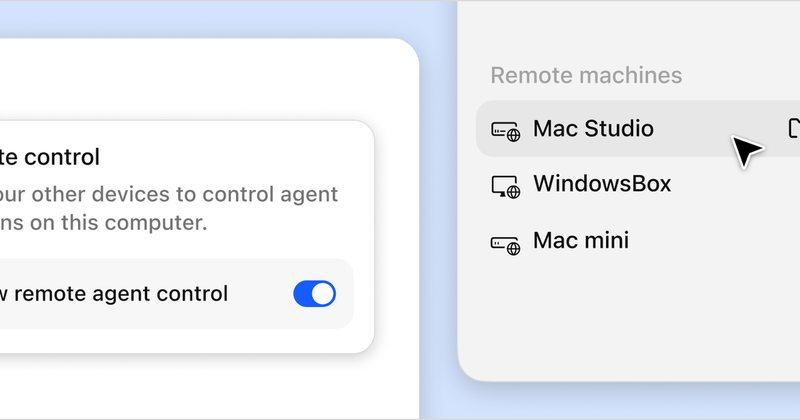
LM Studio Agent Remote Control, released November 16, 2026 in Bionic 1.2.1, lets you run Bionic agent projects and sessions on another machine you own, such as a PC, dev box or cloud VM, and drive them from your other devices over LM Link. Each host must turn on Allow remote agent control first.
Contents
- What changed in Bionic 1.2.1
- Remote control vs earlier LM Link
- How to set up a remote machine
- Working with remote projects and @ dispatch
- Plans and device limits
- Practical workflows
- Limitations and security notes
- Frequently asked questions
What changed in Bionic 1.2.1
LM Studio introduced Agent Remote Control on November 16, 2026. In its words, Bionic now supports desktop-to-desktop remote control: you turn any machine into an agent host, then create, manage and continue its projects and sessions from your other devices. The host can be a laptop, a PC, a dev box or a VM in the cloud.
The Bionic changelog files the feature under Bionic 1.2.1, dated November 16, 2026. The items most relevant to power users are listed below.
| Area | New in Bionic 1.2.1 (per the changelog) |
|---|---|
| Remote agents | LM Link remote chats and projects on other Bionic and llmster devices; an “Allow remote agent control” switch; a remote machine sidebar with device management |
| Remote files | Device and folder selection for remote projects and working folders; fast file transfers between remote agent devices |
| Reliability | Clearer connection status and retry options for remote chats; fixes for remote devices lingering after logout and for unavailable devices blocking new local chats |
| Automation | Opt-in beta API for launching assistants headlessly and streaming their progress; settings that let assistants read or operate other sessions without permission prompts |
| Agent quality | Fix for AGENTS.md instructions being lost after compaction; images in MCP tool call results |
| Engines | llama.cpp 2.76.0 and oMLX 0.4.0 extension packs |
If you read our earlier LM Studio Bionic 1.1.10 guide to the terminal and speculative decoding, this release builds on that base.
Remote control vs earlier LM Link
LM Link is LM Studio’s end-to-end encrypted network between your own devices, built with Tailscale. The Add a Device docs still describe that model-sharing flow: remote models appear in your local model loader and can be loaded with the usual controls or with lms.
| Capability | LM Link model sharing | Agent Remote Control (Bionic 1.2.1) |
|---|---|---|
| What travels over the link | Model loading, inference and API access | Agent projects and sessions |
| Where work runs | The model runs remotely; the agent stays on your device | The agent works directly on the remote machine |
| Opt-in | Enable LM Link on each device | Also turn on Allow remote agent control on the host |
| Headless hosts | llmster with lms link enable |
llmster, per LM Studio’s setup steps |
Note that the LM Link FAQ says linked devices can only talk to each other for model and API access and do not expose your files or operating system. Remote agent control is the separate, per-machine opt-in that lets a Bionic agent work on a host, so treat that switch as the real permission boundary.
How to set up a remote machine
LM Studio’s announcement gives four setup steps:
- Install Bionic on the machine you want to control. On a machine without a display, use llmster, LM Studio’s headless daemon.
- On that machine, click the Remote control button at the top of the sidebar and turn on Allow remote agent control.
- On the device you work from, open Settings > Devices > Remote Machines. Create your device network if you have not already.
- Add your machines. They then appear under Remote machines in the sidebar.
For a headless Linux box, the Add a Device page lists the terminal commands: install llmster with curl -fsSL https://lmstudio.ai/install.sh | bash, sign in with lms login, then run lms link enable. The machine then appears on the LM Link page of your other devices. Our LM Studio system requirements answer covers what hardware the app supports.
Working with remote projects and @ dispatch
When you create a project, Bionic lists every machine in your device network with its online status, and you choose where the project runs. LM Studio says remote sessions work like local ones, with the interface updating in real time, and you can resume any session where you left off.
You can also hand work off from the session you are in. Type @ in the composer and pick a device. Bionic starts a session on that machine and waits for it, and on the remote side the message shows which session sent it. For example, plan on your laptop, then dispatch test work with a prompt such as “@WindowsBox run the test suite on the current branch and summarize failures”.
Plans and device limits
Remote control rides on LM Link, and the Bionic pricing page caps how many devices LM Link can include on each plan:
| Plan | Price | LM Link devices |
|---|---|---|
| Free | $0 | Up to 5 |
| Bionic+ | $20 per month | Up to 20 |
| Pro | $100 per month | Up to 100 |
Practical workflows
LM Studio highlights three use cases, and each maps to a concrete setup:
- Cross-platform development. Work on a Mac while the agent builds, tests and runs code directly on a Windows or Linux host.
- Long-running tasks. Hand off hours-long jobs such as performance optimization. You can close your laptop and the agent keeps going on the remote machine.
- Dedicated machines. Give heavy or disruptive tasks their own machine instead of the laptop you are using.
For a terminal-first alternative, see our OpenCode 2.3 background subagents guide, and the llama.cpp 1.0.0 guide explains the engine behind LM Studio’s GGUF support.
Limitations and security notes
- Your own devices only. LM Studio describes remote control as working between devices you own in your device network. It is not a team sharing feature.
- No existing Tailscale networks. The LM Link FAQ says LM Link creates a dedicated network and does not currently work with an existing Tailscale network, though it coexists with one.
- Disconnected devices. A device can show as disconnected if LM Studio or llmster crashed without reporting to the discovery server. Check that it is running.
- Permission settings. Bionic 1.2.1 adds settings that let assistants operate other sessions without permission prompts. Leave them off on hosts with sensitive data unless you need them.
Unlike phone-based steering, such as in our Cursor Remote Control guide, Bionic works desktop to desktop.
Frequently asked questions
What is LM Studio Agent Remote Control?
It is a Bionic feature, announced November 16, 2026, that lets you create, manage and continue agent projects and sessions on another machine you own, such as a PC, dev box or cloud VM, from your other devices over LM Link’s end-to-end encrypted connection.
Which version of Bionic adds remote control?
The LM Studio changelog lists remote chats and projects on other Bionic and llmster devices, plus the Allow remote agent control switch, in Bionic 1.2.1, dated November 16, 2026.
Can I control a headless Linux server?
Yes. LM Studio says to use llmster, its headless daemon, on machines without a display. Install it with the install script, run lms login, then lms link enable so the machine joins your LM Link network.
Is Agent Remote Control free?
LM Studio’s pricing page lists LM Link on the Free plan for up to 5 devices, on Bionic+ ($20 per month) for up to 20 devices and on Pro ($100 per month) for up to 100 devices.
Does LM Link expose my computer to the internet?
No. LM Studio’s FAQ says linked devices communicate over Tailscale’s internal end-to-end encrypted connections and are never exposed to the public internet. Each machine must also opt in before others can control its agent sessions.
Sources
- LM Studio blog: Introducing Agent Remote Control (November 16, 2026)
- LM Studio Bionic changelog: Bionic 1.2.1
- LM Studio Bionic pricing
- LM Studio docs: LM Link, Add a Device
- LM Studio docs: LM Link FAQ
Image: Agent Remote Control announcement image by LM Studio (Element Labs, Inc.), from the LM Studio blog, used for editorial purposes.