
Last updated: November 23, 2026
Muse Code 3D generation lets Meta’s terminal coding agent create textured 3D models from a text prompt or reference image. Launched November 20, 2026, it saves GLB files into your project, works with Muse Wonder, Spark and Ember, and is included in every Muse Code subscription, with a higher-quality Pro option on upper plans.
Contents
- What is new in Muse Code 3D generation
- Nano vs Pro and plan availability
- How to create your first 3D asset
- Prompt patterns that work
- Workflows: games, scenes and 3D printing
- Limitations and troubleshooting
- Frequently asked questions
What is new in Muse Code 3D generation
According to the Muse Code documentation, Muse Code is Meta’s coding agent for the terminal and CI, on macOS, Linux and Windows. If you are new to the model family, our Muse Wonder guide to Meta’s Model API and Muse Code covers the basics.
On November 20, 2026, Meta announced in its launch post, “Build 3D models with Muse Code”, that subscribers can now create 3D models for games, 3D printing and scene visualization.
- Built-in 3D tool: no plugin, no separate 3D service and no extra subscription.
- Text or image input: describe an object or drop in a reference image.
- Files in your repo: each asset goes to a new folder under
generated_models/, and GLB is the default format. - Two quality variants: Nano for speed and Pro for higher quality.
- All three agent models: Muse Wonder, Muse Spark and Muse Ember can call the tool.
Before this release, Muse Code could make 2D images with Muse Image but not meshes. The new tool builds on Muse Image: the Create 3D assets documentation explains that Muse Code first renders a reference image, then generates the 3D model from that image.
Nano vs Pro and plan availability
Meta’s subscriptions page lists four Muse Code plans. 3D generation shares one usage allowance with coding and image generation, and each plan has both a five-hour and a weekly limit.
| Plan | Usage vs Everyday (official) | 3D variants | Reported monthly price |
|---|---|---|---|
| Everyday Usage | 1x (10-50 prompts every 5 hours) | Nano | $5 |
| High Usage | 5x | Nano and Pro | $15 |
| Power Usage | 20x, plus Muse Wonder Full | Nano and Pro | $50 |
| Maximum Usage | 80x | Nano and Pro | $200 |
Usage multiples and variant availability come from Meta’s documentation. Meta’s subscription page does not list dollar prices; the prices in the last column are as reported by AI Compass, and Meta says benefits and availability may vary by region. The launch post adds that Everyday Usage subscribers can create about 30 3D models before reaching their five-hour limit.
You do not need Muse Wonder Full to create an asset.
How to create your first 3D asset
3D creation is not available with pay-as-you-go API keys or as a public Meta Model API endpoint, so you must sign in with the account that holds your subscription.
- Install Muse Code. On macOS or Linux run
curl -fsSL https://dev.meta.ai/install.sh | bash. On Windows PowerShell runirm https://dev.meta.ai/install.ps1 | iex. Confirm withmuse --version. - Subscribe and sign in. Subscribe to a Muse Code plan through Accounts Center, then sign in with the browser option when Muse Code prompts you, or later with
/login. - Start a session in your project. Run
cd /path/to/your/projectand thenmuse. - Describe one object. Include shape, colors, materials and use. Mention “low-poly” or a face budget if needed.
- Review the reference image. Correct shape or color problems in the image before asking for the model, because the image determines the result.
- Choose Nano or Pro in your request, then let Muse Code generate the asset.
- Use the returned path. Ask Muse Code to import the GLB into your scene or engine, and keep the generated folder together so textures stay linked.
- Check your allowance with
muse usage, which shows usage and reset times without starting a model turn.
Prompt patterns that work
Meta’s documentation gives a model prompt for a text-only request:
Create a textured 3D model of a small brass lantern for my browser game. Give it a rounded handle, a square base and weathered metal surfaces. Make the whole lantern visible in the reference image.
For an image you already have, paste or drop it into the composer and refer to its label: Create a 3D model of the object in [Image #1]. Keep its shape, proportions, colours and materials. Use it as a prop in this project. Muse Code builds the model from a cleaned-up render of your image, not the original file.
For a good reference image, Meta recommends one centered, fully visible object in a three-quarter view, on a plain background, with soft, even lighting.
Ask for one asset per object; a lantern, a crate and a character are three generations.
Workflows: games, scenes and 3D printing
The main advantage is that assets and code live in the same session. Practical workflows from Meta’s materials:
- Game props: generate a model, then prompt “Load the generated lantern GLB into my existing Three.js scene” and let the agent place and scale it. Models use a normalized size, so set the final scale yourself.
- Character pipelines: there is no built-in rigging tool. Meta suggests prompting Muse Wonder Full to “Rig this character with a Mesh2Motion human skeleton and Blender automatic weights, and deliver a web viewer” for inspection.
- Educational sites: Meta published a downloadable 3D apple-varieties comparison website and a Dungeon Crawler mini-game as sample projects built with Muse Code.
- 3D printing: the launch post lists sending models to a 3D printer as a use case.
Note that subscriptions default to Contributor mode, which gives more usage in exchange for letting Meta train on your content; pass --contributor-mode off to muse exec in CI to control it per run. For comparison with other terminal agents, see our Claude Code 2.1.330 guide and Codex CLI 0.171 guide.
Limitations and troubleshooting
- Static objects only: each generation is one unrigged object. Rigging, animation and scene assembly are separate steps.
- Fine detail: small text and repeated details such as keyboard keys or wheel spokes can be inaccurate. Ask Muse Code to add them with geometry or code.
- No viewer: Muse Code returns files only. Check the asset in your target engine or viewer.
- Fresh references after resume: the 3D tool only accepts images prepared by the image tool in the current run. Copying an older image to a new path does not make it eligible.
- Interrupted jobs: stopping a turn does not necessarily cancel an accepted generation. Keep the job ID and ask Muse Code to check or download that job before generating again.
For model choice inside Muse Code, see our Muse Ember guide to Meta’s low-cost agent model.
Frequently asked questions
Can Muse Code generate 3D models?
Yes. Since November 20, 2026, Muse Code can create textured 3D models from a text description or a reference image. Files are saved under generated_models/ in your project, with GLB as the default format.
Which Muse Code plans include 3D generation?
Every Muse Code subscription plan includes 3D asset creation with the Nano variant. The higher-quality Pro variant is available on the High Usage, Power Usage and Maximum Usage plans. Generation counts towards the same usage allowance as coding and image work.
How many 3D models can I make on the Everyday Usage plan?
Meta’s launch post says Everyday Usage subscribers can create about 30 3D models before reaching their usage limit for a five-hour period. Higher plans allow more. Run muse usage to see your remaining allowance and reset times.
Can I use Muse Code 3D generation through the Meta Model API?
No. Meta’s documentation says 3D asset creation is not available with pay-as-you-go API keys or as a public Meta Model API endpoint. It works only in Muse Code sessions signed in with an active subscription.
Sources
- Meta for Developers blog: Build 3D models with Muse Code (November 20, 2026)
- Meta Model API docs: Create 3D assets
- Meta Model API docs: Muse Code subscriptions
- Meta Model API docs: Muse Code overview
- AI Compass: Meta adds native GLB 3D model generation tools to Muse Code
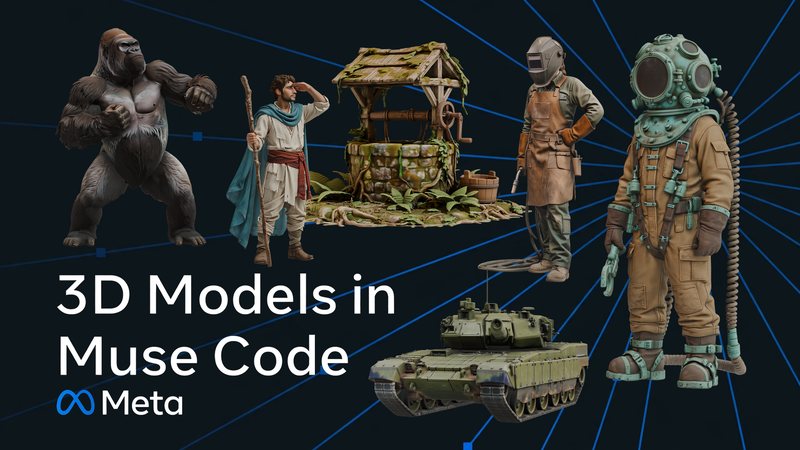
Image: official “3D Models in Muse Code” image from the Meta for Developers blog, used for editorial purposes and resized. FreeAnswers is not affiliated with Meta.