
Last updated: November 7, 2026
The easiest way to transfer data to a new iPhone is Quick Start: turn on the new iPhone, place it next to your current one with Wi-Fi and Bluetooth on, and follow the prompts. You can copy data directly from the old iPhone or download it from iCloud. A cable or a computer backup also works.
This guide to how to transfer data to new iPhone models covers each Apple method, what to do after setup, and free temporary iCloud storage.
Contents
- What to do before you transfer data
- Which transfer method should you use?
- How to transfer data to a new iPhone with Quick Start
- How to transfer data from iPhone to iPhone with a cable
- How to transfer data to a new iPhone using iCloud
- How to transfer data using a Mac or PC backup
- How to transfer data to a new iPhone after setup
- What to do with your old iPhone
- Frequently asked questions
What to do before you transfer data
- Update both phones to the latest iOS (Apple Support: Quick Start).
- Have your Apple Account password ready to restore apps and purchases (Apple Support: restore).
- Plug both phones into power and keep them near each other.
- Plan for your SIM or eSIM. You might be asked to activate cellular service. See the difference between a SIM card and an eSIM.
Which transfer method should you use?
Apple supports four ways to move your apps and data:
| Method | What you need | Usable during transfer? | Best for |
|---|---|---|---|
| Quick Start, Transfer from iPhone | Old iPhone on iOS 11 or later, Wi-Fi and Bluetooth on | No, both phones are busy until it finishes | A complete direct copy in one sitting |
| Quick Start, Download from iCloud | Old iPhone nearby and an iCloud backup | Yes, data downloads in the background | Getting started on the new phone quickly |
| Wired connection | A USB-C or Lightning cable, depending on the models | No, wait for the transfer to finish | Slow or unreliable Wi-Fi |
| Computer backup | Mac with the Finder or a Windows PC with the Apple Devices app | No, keep the phone connected | No iCloud space, or the old phone is gone |
How to transfer data to a new iPhone with Quick Start
Quick Start needs a current iPhone on iOS 11 or later (Apple Support: Quick Start):
- Connect your current iPhone to Wi-Fi and turn on Bluetooth. Unlock it and go to the Home Screen.
- Turn on the new iPhone and place it near your current one. If the setup prompt disappears, restart both devices.
- Connect the new iPhone to Wi-Fi or your cellular network, and activate cellular service if asked.
- Set up Face ID or Touch ID.
- Choose how to transfer your data: directly from your previous iPhone or by downloading from iCloud.
- Keep both phones near each other and plugged in to power until the transfer is complete.
Bluetooth must stay on; see whether Airplane Mode turns off Bluetooth. Devices enrolled in Apple School Manager or Apple Business cannot use Quick Start to transfer data.
How to transfer data from iPhone to iPhone with a cable
The cable depends on your models (Apple Support: wired transfer):
| Old iPhone | New iPhone | What to use |
|---|---|---|
| iPhone 15 or later | iPhone 15 or later | USB-C Charge Cable |
| iPhone 14 or earlier | iPhone 15 or later | USB-C to Lightning Cable |
| iPhone 14 or earlier | iPhone 14 or earlier | Lightning to USB 3 Camera Adapter plus a Lightning to USB Cable, with the adapter on a 12W or higher power adapter |
Connect both phones, turn them on and follow the onscreen steps. The new iPhone still joins Wi-Fi or a cellular network, and you must wait for the transfer to finish on both devices.
How to transfer data to a new iPhone using iCloud
Use iCloud when you will not have both phones at once. Back up the old iPhone, then on the new one (Apple Support: restore):
- Follow setup to the Transfer Your Apps & Data screen.
- Tap From iCloud Backup, sign in, and choose the most recent backup.
- Stay on Wi-Fi and power until the progress bar finishes. Photos and apps keep downloading afterward.
Get free temporary iCloud storage
If you lack iCloud space, go to Settings > General > Transfer or Reset iPhone on the old phone and tap Get Started under Prepare for New iPhone. You have 21 days to restore, plus 21 more via Keep My Backup Longer if the new phone has not arrived (Apple Support: temporary iCloud storage). Do not erase the old iPhone until the restore is complete.
How to transfer data using a Mac or PC backup
Back up the old iPhone to your computer, then (Apple Support: restore):
- On a Mac with macOS Catalina 10.15 or later, open the Finder. On a Windows 10 or later PC, open the Apple Devices app.
- Connect the new iPhone with a USB cable and select it in the sidebar.
- Click Restore Backup, choose the latest backup, enter its password if encrypted, and click Restore.
How to transfer data to a new iPhone after setup
Transfer options appear only during setup. If you already set up the new iPhone, Apple says to erase it first, then restore (Apple Support: restore from a backup). The erase option is in Settings > General > Transfer or Reset iPhone > Erase All Content and Settings (Apple Support: before you sell or trade in).
Act quickly: Apple warns that a device set up as new creates iCloud backups that replace your saved ones. Anything created on the new phone since setup is erased, so sync it to iCloud first.
What to do with your old iPhone
After confirming everything transferred, Apple recommends these steps before you sell or trade in the old phone (Apple Support: before you sell or trade in):
- Unpair any Apple Watch from the old iPhone.
- Open Settings, tap your name, then tap Sign Out.
- Go to Settings > General > Transfer or Reset iPhone > Erase All Content and Settings. If you use eSIM, choose to erase the eSIM profile as well.
For stored sign-ins, see what happens to passkeys if you lose your phone. Still shopping? Read about Apple’s foldable iPhone Duo.
Frequently asked questions
Can I transfer data to my new iPhone after setup?
Yes, but you must erase the new iPhone first with Erase All Content and Settings, then choose a transfer option when setup starts again.
How long does it take to transfer data to a new iPhone?
Apple gives no fixed time. It varies with network conditions and the amount of data, and Quick Start occupies both phones for several minutes or more.
Is it better to transfer from iCloud or directly from my old iPhone?
Download from iCloud lets you use the new iPhone right away while data downloads in the background. Transfer from iPhone makes a direct copy, but neither phone is usable until it finishes.
Do I need Wi-Fi to transfer data to a new iPhone?
For wireless Quick Start, your current iPhone needs Wi-Fi and Bluetooth turned on. Even with a cable, Apple says the new iPhone must connect to Wi-Fi or your cellular network during setup.
What should I do with my old iPhone after transferring data?
Unpair any Apple Watch, sign out of your Apple Account, and tap Erase All Content and Settings. Erasing the phone does not delete your content from iCloud.
Sources
- Apple Support — Use Quick Start to transfer data to a new iPhone or iPad
- Apple Support — Use a wired connection to transfer data to a new iPhone or iPad
- Apple Support — Restore your iPhone, iPad, or iPod touch from a backup
- Apple Support — Get temporary iCloud storage when you buy a new iPhone or iPad
- Apple Support — What to do before you sell, give away, or trade in your iPhone or iPad
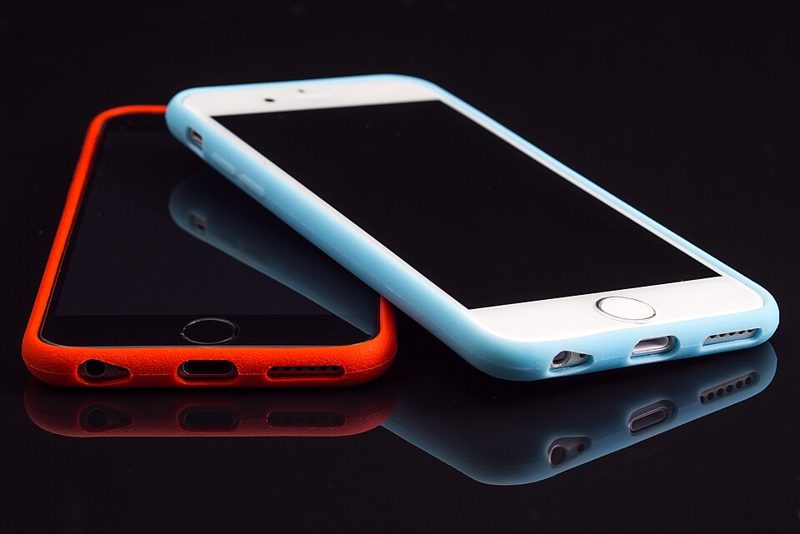
Featured image: two iPhones by Dariusz Sankowski, CC0, via Wikimedia Commons.
1 thought on “How to Transfer Data to New iPhone: Quick Start, Cable and iCloud”