
Last updated: November 18, 2026
Suno Visuals, launched November 17, 2026, adds image and video creation to Suno on web, iOS and Android. It turns your songs into lyric videos, album art and clips of up to 15 seconds that lip sync to your vocals. It uses separate Visual credits, and the new Platinum plan includes 20,000 a month.
Contents
- What Suno launched on November 17
- Plans, credits and pricing
- Modes, resolution and settings
- How to make a music video with Suno Visuals
- Prompt patterns, references and Lip Sync
- Longer videos in the Visuals Editor
- Limitations and comparisons
- Frequently asked questions
What Suno launched on November 17
In the launch post, Suno Chief Product Officer Jack Brody says Visuals makes images and videos for your music: lyric videos that move with the beat, album art, and photos turned into video clips. Suno says it optimized the model so clips follow a song’s structure, pick up on the lyrics and lip sync with them.
You can drag a song from your library into the Visuals tab, make clips up to 15 seconds long, then extend, edit and re-prompt them with text. Suno also offers original characters as starting points. The launch covers web, iOS and Android.
According to the Visuals FAQ, the model is H3 Move, based on H3 from MiniMax. For background on MiniMax’s recent models, see our MiniMax H3-Image guide.
Plans, credits and pricing
The biggest change for existing users is billing. Suno’s Visual credits article says the old credits, which could make songs and certain visuals, are now called Song credits and only generate songs. Every image and video generation, including edits that create new visual content, uses Visual credits.
| Plan | Visuals access | Monthly price (official) |
|---|---|---|
| Free | Can buy Visual credit packs | $0 |
| Pro | Limited-time trial grant of Visual credits, plus packs | $10, or $8 billed yearly |
| Premier | Limited-time trial grant of Visual credits, plus packs | $30, or $24 billed yearly |
| Platinum (new) | 20,000 Visual credits a month, plus 15,000 song credits and 120 song downloads | $120, or $100 billed yearly ($1,200 a year) |
Plan prices and allowances come from Suno’s pricing page, which also says credits included in subscriptions do not carry over month to month. The FAQ says purchased Visual credits never expire, and that cost depends on video duration and the quality you select. Suno does not state the size of the Pro and Premier trial grant.
Suno’s help pages do not list pack prices. AI Musicpreneur reported packs of 2,500 credits for $14.99, 5,500 for $29.99, 20,000 for $99.99 and 40,000 for $199.99, and observed 300 credits for a 10-second Standard clip in its account. Treat those as reported figures and check your own balance before large projects.
Modes, resolution and settings
Each generation runs in a mode that trades speed and quality against credit cost. The video help article and the image help article list these options:
| Output | Modes and resolution | Aspect ratios | Other limits |
|---|---|---|---|
| Video clip | Fast (480p, quick drafts); Standard (720p, balanced quality) | 9:16, 1:1, 16:9, 4:3, 3:4 | 5 to 15 seconds per clip; optional Lip Sync |
| Image | Fast (1K); Standard (1K); Max (2K, highest quality) | 1:1, 9:16, 16:9 | Up to four reference images |
The FAQ says Fast costs fewer Visual credits than Standard. A practical habit is to test prompts and timing in Fast, then render the keeper in Standard.
How to make a music video with Suno Visuals
These steps follow Suno’s video creation guide:
- Open a song’s action menu (…) and select Create Visual → Video Clip, or go to the Create page and select Visuals → Video.
- Choose Fast or Standard at the top of the Create form.
- Use + Audio to pick a song from your library or upload audio, then select the section to feature.
- Describe the scene: characters, setting, action and camera movement. Add a character, start and end frames, or reference images if needed.
- Under More Options, turn on Lip Sync, set a duration from 5 to 15 seconds and pick an aspect ratio.
- Select Create. The clip is saved to your Visuals library, where you can preview, download, share or keep editing.
- To show lyrics, open the video, select the Lyrics icon and turn on Show Lyrics, then set style, position, font and color.
Prompt patterns, references and Lip Sync
Suno’s guides point to a few habits that save credits:
- Name your references. Type
@in the prompt to tag an image, for example: “Use the forest setting from @image1 with the colors and lighting from @image2.” - Frame the face for Lip Sync. Pick a section with clear singing or speech and describe a shot that keeps the character’s face and mouth visible.
- Use start and end frames to control how a clip opens and closes, which makes clips easier to join later.
- Let the Magic Wand expand short prompts. It can draw on your reference images, and the Style Guide suggests styles, camera moves, lighting and effects.
- Build a consistent look. Create a cover image first, then use Animate to make it the starting frame of a video, or reuse it as a reference for later clips.
To fix one element without starting over, select Edit on a clip and describe the change, such as the background, lighting or character actions. Edits that generate new visual content use Visual credits.
Longer videos in the Visuals Editor
Because a single clip tops out at 15 seconds, full music videos are built as Sequences. Selecting Extend opens the Visuals Editor, a timeline that brings clips and music together. According to the help article, you can extend clips, generate new images or videos, add items from your library, then trim, split and rearrange footage and set how lyrics appear.
Plan the song in sections. Map verses and chorus to separate shots, keep Lip Sync for vocal sections, and use instrumental passages for wider scene shots without lip movement.
Limitations and comparisons
- No published per-clip price. Suno’s help pages say cost depends on duration and quality but do not give a credit table.
- Short clips. Each generation is 5 to 15 seconds, so longer videos need several generations plus editing.
- Content rules. Everything you create, upload or share must follow Suno’s Community Guidelines and Terms of Service.
- Mobile updates. If Visuals does not appear on iOS or Android, Suno says to update to the latest app version.
Compared with general video models, Visuals is built around your song: audio, lyrics and lip sync are part of the form. If you need API access or video without music, compare our Gemini Omni 1.2 Flash guide and our Seedance 2.5 Flash guide. For chat-based options, see whether ChatGPT can generate videos, and for another credit-based creative suite, read our Firefly AI Assistant guide.
Frequently asked questions
What is Suno Visuals?
Suno Visuals is an image and video tool inside Suno, launched November 17, 2026. It turns songs into lyric videos, album art and video clips of up to 15 seconds that can lip sync to your vocals.
Is Suno Visuals free?
No. Visuals uses separate Visual credits that anyone can buy. For a limited time, Pro and Premier subscribers get a limited trial grant, and the Platinum plan includes 20,000 Visual credits a month.
How long can a Suno Visuals video be?
Each clip runs 5 to 15 seconds. To make a longer video, select Extend to open the Visuals Editor and combine clips into a Sequence on a timeline.
Do Suno song credits work for Visuals?
No. Since the launch, song credits only generate songs. All image and video generations, including edits that create new visual content, use Visual credits.
Which AI model powers Suno Visuals?
Suno says Visuals runs on H3 Move, a model based on MiniMax’s H3 that Suno optimized for its community and gave additional protections and safeguards.
Sources
- Suno: Introducing Visuals (November 17, 2026)
- Suno Help Center: How do I create videos with Suno Visuals?
- Suno Help Center: Suno Visuals FAQ
- Suno Help Center: What are Visual Credits?
- Suno: Pricing
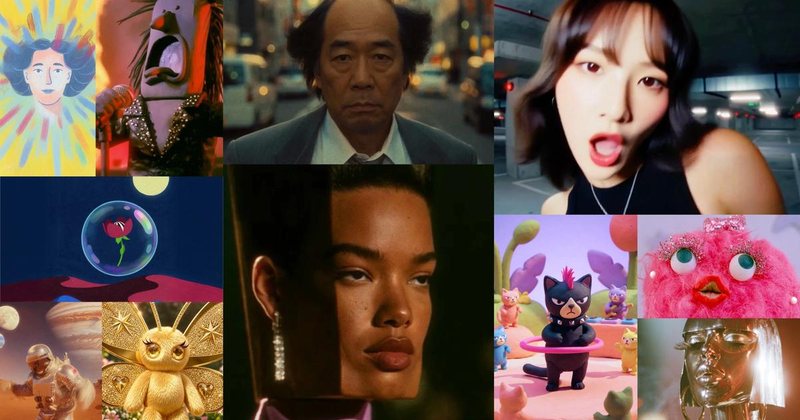
Image: Suno’s official launch collage for Visuals, used for editorial purposes. Courtesy of Suno.