
Last updated: November 19, 2026
GitHub Copilot browser use lets Copilot open websites, click through pages, fill out forms and test web apps in your own Chrome or Edge browser. It entered public preview on November 17, 2026, in Copilot CLI, the Copilot app, VS Code and JetBrains IDEs, and requires the GitHub Copilot Chrome extension and Node.js 22 or later.
Contents
- What browser use does
- Where it works and what you need
- How to turn on browser use
- Writing good browser tasks
- Site permissions and admin controls
- Browser use vs. computer use
- Limitations and safety tips
- Frequently asked questions
What browser use does
GitHub announced browser use in a November 17 changelog post as part of its effort to bring computer use into everyday developer workflows. Paired with the GitHub Copilot Chrome extension, the feature lets you ask Copilot to control the browser, debug web apps in real time, automate browser tests and handle multi-step web tasks.
According to GitHub’s browser use documentation, typical requests include testing a web application, filling out a form, or navigating to a page and retrieving information. GitHub gives a combined example: test a website, record confirmed issues in an online spreadsheet, and draft an email summary for stakeholders, with Copilot showing you the email before anything is sent.
The Chrome Web Store listing adds that Copilot can inspect rendered pages, capture screenshots and walk through application flows to help verify how your changes look and behave.
Where it works and what you need
Browser use is a public preview, and GitHub says it is subject to change. The table summarizes the requirements GitHub publishes.
| Item | Requirement or detail |
|---|---|
| Copilot surfaces | GitHub Copilot CLI, GitHub Copilot app, Visual Studio Code, JetBrains IDEs |
| Browsers | Google Chrome; Microsoft Edge (Chrome must also be installed) |
| Browser extension | GitHub Copilot extension from the Chrome Web Store (version 0.2.2, updated November 18, 2026) |
| Runtime | Node.js 22 or later, with node on your PATH |
| Chrome version | Chrome 127 or later |
| Default state | Off until you install the extension and enable browser use |
| Status | Public preview |
The browser use pages do not list separate pricing or plan limits.
How to turn on browser use
The steps differ slightly by client. This sequence follows the Copilot CLI guide, the Copilot app guide and the IDE guide:
- Install Node.js 22 or later and confirm that
noderuns from your terminal. - In Chrome or Edge, install the GitHub Copilot extension from the Chrome Web Store.
- Enable browser use in your client:
- Copilot CLI: start an interactive session, enter
/plugin, enable thebrowser-useplugin, then start a new session. - Copilot app: open Settings, select Computer Use and turn on Enable Browser Use. Enable Computer Use must be on first.
- VS Code: open Settings, search for
browser useand enable Browser Use: Enabled. - JetBrains: open Settings, select GitHub Copilot, then Chat, turn on Enable Browser Use and start a new chat session.
- Copilot CLI: start an interactive session, enter
- Click the extension icon and check that its status reads Connected.
- Ask Copilot for a browser task, such as “Open github.com in my browser,” or run the
/browser-usecommand to tell it to use the browser.
Once enabled, Copilot uses the browser automatically for browser-related tasks. For editor-specific changes, see our VS Code 1.146 guide. In the CLI, if nothing happens, run /browser-use:doctor and follow its guidance. On macOS 27, GitHub notes that the Copilot app may show the extension as Not installed even when it is installed. Starting a session and sending a message lets the extension connect within a few seconds, and the status then updates.
Writing good browser tasks
GitHub recommends naming the site, the outcome you want and any constraints. Its sample prompt asks Copilot to open a test app URL, check that the sign-in form shows a validation message when the fields are empty, avoid submitting real credentials or changing data, and summarize the findings.
The Chrome Web Store listing suggests delegating repetitive browser work: walking through app flows after a change, capturing screenshots for review, gathering context from approved sites, and filling out forms on test systems. Sign in and complete sensitive steps yourself.
If you work mostly in the terminal, our Copilot CLI 1.0.111 guide covers other recent CLI features. For the desktop client, see the GitHub Copilot app guide. To measure whether agent changes hold up, our Copilot Evals guide explains GitHub’s evaluation preview.
Site permissions and admin controls
The Chrome Web Store listing says that, by default, Copilot asks for approval before connecting to a site. In the extension’s permission settings you can set each domain to require approval, always allow, or block. The same settings page holds experimental features.
For organizations, the documentation describes a managed setting. Enterprise administrators can set features.browserUse to false to stop users from enabling browser use. Setting it to true, or leaving it out, lets users control the feature themselves.
Browser use vs. computer use
Browser use builds on computer use, which GitHub released in public preview on October 1, 2026. GitHub says the two can be used together.
| Feature | Browser use | Computer use |
|---|---|---|
| Released (public preview) | November 17, 2026 | October 1, 2026 |
| What it controls | Websites in Chrome or Edge | Desktop applications on macOS and Windows |
| Copilot surfaces | CLI, Copilot app, VS Code, JetBrains | CLI and Copilot app |
| How to enable | Chrome extension plus a client setting or the browser-use plugin |
/computer on or the Enable Computer Use setting |
| Approval model | Per-site approval, allow or block in the extension | Approval before controlling an app |
For a different approach, our guide to Gemini Computer Use covers Google’s API-level tool, which suits developers building their own agents rather than working inside an editor.
Limitations and safety tips
- Interfaces change. GitHub warns that browser use can pick the wrong control, type in the wrong field, or struggle with dynamic pages and complex workflows. Timing and page-state changes can produce different results.
- It uses your signed-in sessions. Copilot can act on sites where you are already signed in, so give precise instructions and review results before allowing changes that affect data or other people.
- Visible content becomes context. Pages may show sensitive information, including details about other people. Only use sites whose visible content you are comfortable sharing with Copilot.
- Keep credentials out of prompts. GitHub advises against asking Copilot to submit real credentials or make changes you have not reviewed.
- Preview status. Features and setup steps may change before general availability.
Frequently asked questions
What is GitHub Copilot browser use?
Browser use is a public preview feature, announced November 17, 2026, that lets Copilot interact with websites in your Chrome or Edge browser as part of a task. You can ask it to test a web application, fill out a form or retrieve information from a webpage.
Which Copilot tools support browser use?
GitHub lists four surfaces: GitHub Copilot CLI, the GitHub Copilot app, Visual Studio Code and JetBrains IDEs. Each one needs the GitHub Copilot browser extension from the Chrome Web Store.
What do I need to install for Copilot browser use?
You need a supported Copilot client, Node.js 22 or later available on your PATH, Chrome 127 or later, and the GitHub Copilot extension for Chrome. Browser use is turned off by default, so you must also enable it in your Copilot client.
How is browser use different from Copilot computer use?
Browser use works inside websites through the Chrome extension. Computer use, released in public preview on October 1, 2026, lets Copilot control desktop applications on macOS and Windows from Copilot CLI and the Copilot app. The two can be used together.
Can administrators turn off Copilot browser use?
Yes. Enterprise administrators can set the features.browserUse key to false in managed settings to stop users from enabling browser use. Setting it to true, or leaving it out, lets users decide.
Sources
- GitHub Changelog: Let GitHub Copilot interact with your browser
- GitHub Docs: About browser use in GitHub Copilot
- GitHub Docs: Using GitHub Copilot CLI to interact with your browser
- GitHub Docs: Using the GitHub Copilot app to interact with your browser
- GitHub Docs: Using GitHub Copilot in your IDE to interact with your browser
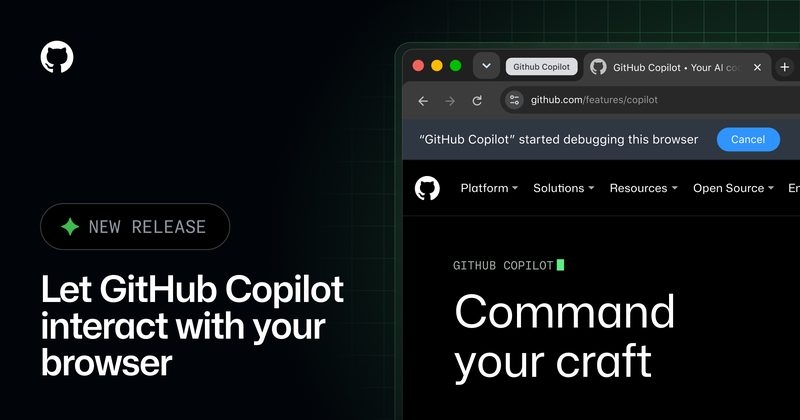
Image: “Let GitHub Copilot interact with your browser” changelog header, GitHub, used for editorial purposes.