
Last updated: November 29, 2026
How to set up Apple Watch: press and hold the side button until the Apple logo appears, put the watch on, and hold it near your unlocked iPhone. Tap Continue, then Set Up for Myself, and center the watch in the iPhone camera to pair. Then follow the prompts to sign in and create a passcode.
These steps follow Apple’s Set up your Apple Watch article. This guide also covers requirements, manual pairing, setup for a child, moving to a new iPhone and pairing fixes.
Contents
- What do you need to set up an Apple Watch?
- How to set up Apple Watch step by step
- How do you pair an Apple Watch manually?
- How do you set up an Apple Watch for a child?
- How do you set up an Apple Watch with a new iPhone?
- Setting up an Apple Watch you received as a gift
- Why won’t my Apple Watch pair?
- Frequently asked questions
What do you need to set up an Apple Watch?
Every Apple Watch is set up from an iPhone, and the required model depends on the watch. Apple’s Apple Watch and iPhone compatibility chart lists these requirements for recent models:
| Apple Watch model | Compatible iPhone | Minimum iOS | Minimum watchOS |
|---|---|---|---|
| Series 12, Ultra 4 | iPhone 11 or later | iOS 27 | watchOS 27 |
| Series 11, SE 3, Ultra 3 | iPhone 11 or later | iOS 26 | watchOS 26 |
| Series 10 | iPhone XS or later | iOS 18 | watchOS 11 |
| Series 9, Ultra 2 | iPhone XS or later | iOS 17 | watchOS 10 |
Before you begin:
- Update your iPhone in Settings > General > Software Update.
- Turn on Bluetooth and connect to Wi-Fi or cellular.
If your iPhone is also new, set it up first; see how to transfer data to a new iPhone.
How to set up Apple Watch step by step
Apple’s setup article and Apple Watch User Guide describe the same core sequence:
- Turn on the watch. Press and hold the side button until the Apple logo appears, then put the watch on. If it does not turn on, charge it.
- Bring it near your iPhone. Unlock your iPhone, wait for “Use your iPhone to set up this Apple Watch,” then tap Continue. If it does not appear, open the Apple Watch app and tap All Watches, then Add Watch.
- Choose who it is for. Tap Set Up for Myself, or tap Set Up for a Family Member.
- Pair with the camera. Hold your iPhone over the animation on the watch and center the watch face in the viewfinder. Wait for the message that your Apple Watch is paired.
- Set up as new or restore. On a first watch, tap Set Up as New Apple Watch. If you used another Apple Watch with this iPhone, choose Express Setup or restore a backup. You may need to update watchOS or iOS.
- Choose a wrist and agree to the terms. Pick the wrist you wear the watch on, tap Continue, then tap Agree.
- Sign in to your Apple Account. If not asked, sign in later in the Apple Watch app under General > Apple Account.
- Create a passcode. Choose a standard four-digit passcode or a long six-digit passcode. You can skip this, but Apple Pay requires one.
- Customize settings. Pick text size, add details such as date of birth for Fitness and Health, and choose health notifications. You can also set up Apple Pay.
- Wait for syncing. Keep both devices close. The watch face appears when setup finishes.
Do cellular models need extra steps?
You can activate cellular service during setup or later in the Apple Watch app. Your iPhone and watch must use the same carrier, except for family member watches (Apple).
How do you pair an Apple Watch manually?
If the camera cannot read the animation, tap Pair Apple Watch Manually at the bottom of the iPhone screen and follow the onscreen prompts (Apple).
How do you set up an Apple Watch for a child?
Apple Watch For Your Kids, formerly Family Setup, lets a family member without an iPhone use a watch you manage. Apple’s family setup article lists these requirements:
- An Apple Watch Series 4 or later, or SE or later, with cellular, running watchOS 7 or later.
- An iPhone 6s or later with iOS 14 or later for the initial setup.
- Apple Accounts for you (with two-factor authentication) and the family member.
- A Family Sharing group where you are organizer, parent or guardian.
Follow the same pairing steps but tap Set Up for a Family Member. You then choose the family member and can turn on Ask to Buy, add a cellular plan, share contacts and set up Schooltime. A cellular plan is not required for setup, but some features need one.
How do you set up an Apple Watch with a new iPhone?
You do not have to start over. Apple’s new iPhone pairing article says to update your old iPhone and watch, then back up the old iPhone, which also backs up the watch. The watch and new iPhone should be at least 50 percent charged. Restore the backup to the new iPhone, keep the watch unlocked on your wrist and tap Continue when asked. If the Apple Watch app shows Start Pairing instead, unpair the watch and set it up again.
Setting up an Apple Watch you received as a gift
Three points that most setup guides skip:
- Charge first. Apple’s update guidance says software updates can take from several minutes to an hour, so start with both devices charged.
- Check for Activation Lock. If a used watch shows an Activation Lock screen, it is linked to another Apple Account; the previous owner may need to remove it.
- Erase hand-me-downs. If a watch shows a watch face or asks for a passcode during pairing, it is still paired to another iPhone and must be erased first. Passing on an old phone too? See how to factory reset an iPhone.
Next, see how to connect AirPods and how many steps a day you should walk. Giving a watch? See how to wrap a present.
Why won’t my Apple Watch pair?
Apple lists these common fixes:
| Problem | What it means | What to do |
|---|---|---|
| Watch face appears or passcode is requested | Still paired with another iPhone | Erase the watch, then set it up again |
| Activation Lock screen | Linked to an Apple Account | Enter that account’s email and password, or contact the previous owner |
| Camera does not start pairing | Animation not read | Tap Pair Apple Watch Manually |
| Error message during setup | Software or connection issue | Update iOS, then restart the iPhone and the watch |
Frequently asked questions
Can I set up my Apple Watch without an iPhone?
Not on your own. Apple requires an iPhone for setup, but with Apple Watch For Your Kids a parent can use their iPhone to set up a cellular watch for a child who has no iPhone.
Why won’t my Apple Watch pair with my iPhone?
Make sure your iPhone runs the latest iOS, with Bluetooth on and Wi-Fi or cellular connected. If the watch shows a watch face or asks for a passcode, it is still paired with another iPhone and must be erased.
How do I pair my Apple Watch with a new iPhone?
Update and back up your old iPhone, then restore that backup to your new iPhone. When the new iPhone asks if you want to use your Apple Watch, keep the watch unlocked on your wrist and tap Continue.
Do I need a passcode on my Apple Watch?
No, you can tap Don’t Add Passcode during setup. However, Apple says you need a passcode for features such as Apple Pay.
How long does it take to set up an Apple Watch?
Pairing takes a few on-screen steps, but a required watchOS update can add time. Apple says updates can take from several minutes to an hour, so charge both devices first.
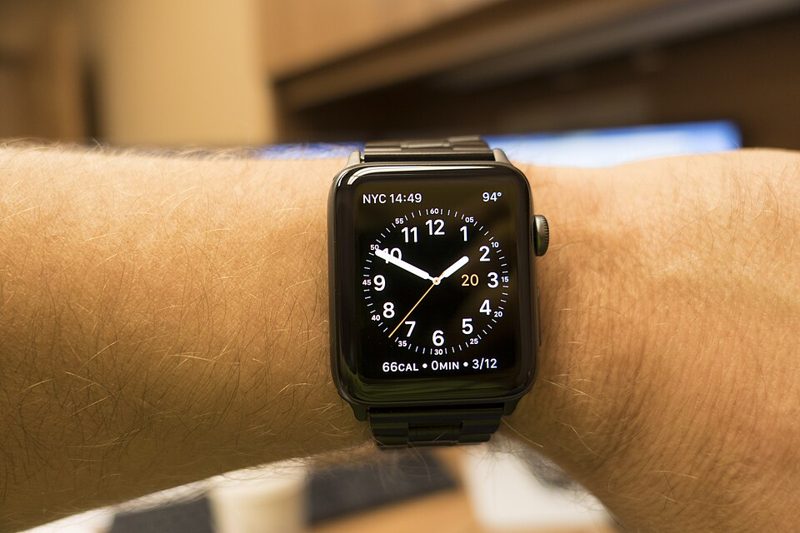
Featured image: “Black Apple Watch on my wrist” by Jonathan Cutrer, CC BY 2.0, via Wikimedia Commons; resized.

Sources
- Apple Support: Set up your Apple Watch
- Apple Watch User Guide: Pair and set up Apple Watch with iPhone
- Apple Support: Apple Watch and iPhone compatibility
- Apple Support: Set up Apple Watch for a family member
- Apple Support: Pair your Apple Watch with a new iPhone