
Last updated: November 16, 2026
To factory reset an iPhone, back it up, then go to Settings > General > Transfer or Reset iPhone > Erase All Content and Settings. Tap Continue, enter your passcode and Apple Account password, and wait. When the Hello screen appears, the iPhone is back to factory settings.
This guide explains how to factory reset iPhone models step by step, including how to factory reset iPhone without a passcode, how to reset iPhone with a computer, and how a full erase differs from Reset All Settings.
Contents
- What to do before you factory reset your iPhone
- How to factory reset iPhone in Settings
- How to factory reset iPhone without a passcode
- How to reset iPhone with a computer (recovery mode)
- Factory reset vs. Reset All Settings vs. force restart
- How to reset iPhone for trade in or sale
- Frequently asked questions
What to do before you factory reset your iPhone
A factory reset erases the phone completely, so prepare first (Apple):
- Back up to iCloud or a computer so you can restore your apps, settings and content later.
- Know your passwords: you need the device passcode and your Apple Account password during the erase (Apple).
- Decide about your eSIM: you can keep or delete it. If you delete it, you must contact your carrier to reactivate the plan. Our explainer on the difference between a SIM card and an eSIM covers the basics.
Moving to a new phone? Transfer your data before you erase the old one. See how to transfer data to a new iPhone with Quick Start, a cable or iCloud.
How to factory reset iPhone in Settings
This is the standard method when you can unlock the phone. Apple lists these steps (Apple):
- Open the Settings app and tap General.
- Tap Transfer or Reset iPhone.
- Tap Erase All Content and Settings, then tap Continue.
- Choose whether to keep or delete your eSIM.
- Enter your device passcode.
- Wait for the iCloud backup to finish.
- Enter your Apple Account password and tap Done on the keyboard.
- Wait for the iPhone to reset. The Hello screen appears when it is finished.
Erasing removes everything on the device, including Apple Pay cards, photos, contacts, music and apps, and turns off iCloud, iMessage, FaceTime and Game Center. Your content is not deleted from iCloud (Apple).
How to factory reset iPhone without a passcode
If you forgot your passcode, Apple suggests trying three options in order: Passcode Reset, an on-device reset, then a computer (Apple).
Reset from the Lock Screen (no computer)
You need iOS 15.2 or later, Find My previously turned on, an active Wi-Fi or cellular connection and your Apple Account password (Apple).
- Enter the passcode on the Lock Screen until the iPhone Unavailable screen appears.
- Tap Forgot Passcode? (on iOS 15.2 and iOS 16 the option is Erase iPhone).
- On the Security Lockout screen, tap Start iPhone Reset.
- Enter your Apple Account password to sign out.
- Tap Erase iPhone. On iOS 17 or later you can keep or delete your eSIM.
- After the restart, set up the phone, restore a backup and set a new passcode.
How to reset iPhone with a computer (recovery mode)
If the on-device reset is not available, use a Mac or Windows PC, a charging cable, an internet connection and up to 60 minutes (Apple).
- Turn off the iPhone. On Face ID models, hold the side button and Volume Down until the power off slider appears, then drag it.
- Connect the cable to the computer, then to the iPhone, and immediately hold the button for your model: the side button (Face ID models, iPhone 8 and iPhone SE 2nd and 3rd generation), Volume Down (iPhone 7) or the Home button (iPhone 6s and earlier).
- Keep holding through the Apple logo until a computer and cable image appears.
- On a Mac, select the iPhone in a Finder window. On a PC, select it in the Apple Devices app.
- Choose Restore. If the download takes more than 15 minutes and the iPhone leaves recovery mode, let the download finish and start again.
If you have no computer to use, Apple directs you to an Apple Store or an Apple Authorized Service Provider (Apple).
Factory reset vs. Reset All Settings vs. force restart
Choose the lightest option that fixes the problem:
| Option | Where to find it | What it erases | Best for |
|---|---|---|---|
| Force restart | Volume Up, Volume Down, then hold the side button until the Apple logo | Nothing | A frozen or unresponsive screen |
| Reset Network Settings | Settings > General > Transfer or Reset iPhone > Reset | Saved Wi-Fi networks, VPN settings and device name | Wi-Fi, cellular or Bluetooth problems |
| Reset All Settings | Same Reset menu | Settings only; no data or media | Settings problems you cannot trace |
| Erase All Content and Settings | Settings > General > Transfer or Reset iPhone | All content and settings | Selling, trading in or starting fresh |
| Recovery mode restore | Mac Finder or Windows Apple Devices app | Everything; reinstalls iOS | Forgotten passcode or a phone that will not start |
Sources: force restart, Reset options and recovery mode (Apple). If an app or browser is misbehaving, clearing the cache on iPhone and other devices is a much smaller step to try first.
How to reset iPhone for trade in or sale
Before you sell, give away or trade in an iPhone, Apple recommends this order (Apple):
- Create a backup and transfer your information to the new device.
- Unpair your Apple Watch.
- Check Parts and Service History; a part marked Finish Repair must be completed before trade-in.
- Sign out: Settings > [your name] > Sign Out. On iOS 26 or later, choose Erase this iPhone or Sign Out But Don’t Erase.
- If you are switching to a non-Apple phone, deregister iMessage.
- Erase All Content and Settings. For an eSIM phone you are selling, choose to erase the eSIM profile too.
Erasing the iPhone turns off Find My and Activation Lock, so the next owner can set it up. If the phone is already gone, you can erase it remotely in Find Devices on iCloud.com (Apple). If you use passkeys, read what happens to passkeys if you lose your phone before you wipe it.
Frequently asked questions
How do I factory reset my iPhone?
Back up first, then go to Settings > General > Transfer or Reset iPhone > Erase All Content and Settings. Tap Continue, enter your passcode and Apple Account password, and wait for the Hello screen.
How do I factory reset my iPhone without a passcode?
On iOS 15.2 or later, enter the wrong passcode until iPhone Unavailable appears, tap Forgot Passcode?, then Start iPhone Reset. This needs Find My turned on, Wi-Fi or cellular service and your Apple Account password; otherwise use recovery mode on a computer.
Does a factory reset delete everything on iPhone?
Yes. Erase All Content and Settings removes photos, contacts, music, apps and Apple Pay cards from the iPhone and turns off iCloud, iMessage and FaceTime. Content stored in iCloud is not deleted.
Can you factory reset an iPhone with buttons?
Not by buttons alone. Buttons put the iPhone into recovery mode, and you then choose Restore in the Finder on a Mac or the Apple Devices app on a Windows PC. A button force restart only restarts the phone and erases nothing.
Does factory reset remove Apple ID?
Erasing signs the iPhone out and turns off Find My and Activation Lock, but you must enter your Apple Account password to do it. Before selling, Apple also recommends signing out of iCloud and the App Store first.
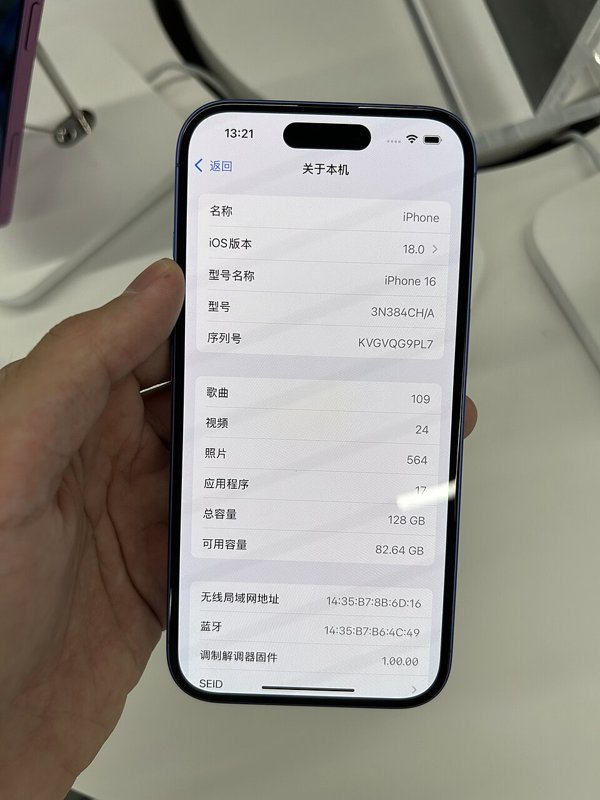
Featured image: “About iPhone 16 Ultramarine” by メイド理世, CC BY-SA 4.0, via Wikimedia Commons; resized.

Sources
- Apple Support. How to factory reset your iPhone, iPad, or iPod touch.
- Apple Support. If you forgot your iPhone, iPad, or Apple Vision Pro passcode, reset your device without a computer.
- Apple Support. Use a computer to reset your iPhone and your passcode.
- Apple Support. What to do before you sell, give away, or trade in your iPhone or iPad.
- Apple iPhone User Guide. Reset iPhone settings to their defaults.