
Last updated: November 12, 2026
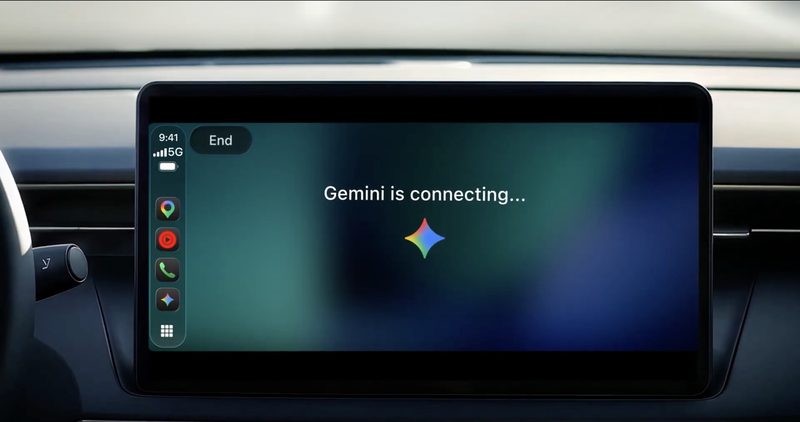
Google released the Gemini app for Apple CarPlay on November 11, 2026. It brings hands-free Gemini Live conversations to the car screen, with access to Gmail, Google Calendar and Daily Brief. Chats sync to your iPhone. You need the latest Gemini app, microphone access and one earlier Gemini Live session.
Contents
- What is new
- Requirements and availability
- How to start Gemini on CarPlay
- Workflows and prompts for drivers
- CarPlay compared with Android Auto
- Limitations
- Frequently asked questions
This guide is based on Google’s CarPlay launch post, Gemini Apps Help pages on Gemini in the car and Daily Brief, and Google Maps Help.
What is new
Until this week, Gemini in the car was mainly an Android feature. Google first brought it to Android Auto and to cars with Google built-in. On November 11, 2026, Google said in its announcement that it is now “bringing the Gemini app directly to Apple CarPlay.”
The CarPlay app is built around Gemini Live, the real-time voice mode. Instead of short commands, you hold a back-and-forth conversation. You can interrupt to add a detail, change the subject, or pause when you need to concentrate on an exit.
Three details matter most to regular Gemini users:
- Resume or start fresh. When you open the app, you can continue a recent chat or begin a new one.
- Workspace access. Gemini can work with Gmail and Google Calendar, so you can hear unread emails, summarize long threads and talk through a reply.
- Sync. CarPlay conversations sync automatically to the Gemini app on your iPhone.
According to 9to5Google, the screen shows a simple waveform that indicates when Gemini is listening, thinking and responding, with End and Mute buttons in the top-left corner.
Requirements and availability
| Item | What Google says |
|---|---|
| Release date | November 11, 2026, rolling out gradually |
| Who gets it | All Gemini users on iOS |
| Regions and languages | Global, in every supported Gemini Live language |
| App version | Latest Gemini app on your iPhone |
| Permissions | Microphone access turned on for the Gemini app |
| First use | You must have used Gemini Live on your phone at least once |
| Daily Brief | Must be turned on first; 18 or over, US, personal Google Account, English only, Memory on |
| Not available | Certain personalization features, including Daily Brief, for users under 18 or in the EEA and Nigeria |
Google does not list a paid plan as a requirement for the CarPlay app itself. For what the free tier includes in general, see our answer on whether Gemini is free.
How to start Gemini on CarPlay
These steps follow Google’s launch post. Do the phone steps before you drive.
- Update the Gemini app on your iPhone to the latest version from the App Store.
- Allow microphone access for the Gemini app if you have not already done so.
- Open Gemini on the phone and complete at least one Gemini Live conversation.
- Optional: connect Google Workspace and turn on Memory so that Daily Brief and Gmail requests work. The Daily Brief help page lists both as requirements.
- Connect your iPhone to your car’s CarPlay system.
- Tap the Gemini icon on the CarPlay display or side rail.
- Choose a recent conversation to continue, or start a new one, and speak normally.
If the icon does not appear, check the app version first, then confirm the earlier Gemini Live session. Because the release is gradual, some iPhones may simply not have it yet.
Workflows and prompts for drivers
Google groups CarPlay use cases into four types. The quoted prompts below are Google’s own examples.
- Morning preparation. Ask what is on your calendar or when you need to leave. Try “What does my day look like?” or “Help me prep for my 10am with the design team.”
- Inbox review. Try “Give me my daily brief for today” or “Catch me up on my unread emails and summarize Sarah’s Q4 budget thread.”
- Local information. Ask about lunch near your destination or the history of a landmark you are heading to.
- Rehearsal. Try “Let’s roleplay my Q4 pitch — act as a skeptical VP and challenge my strategy.”
Power users can get more from these sessions with a few habits:
- Use a dedicated chat. Continue one “commute” conversation each day so Gemini already has your earlier notes. After you park, review the synced chat on the phone.
- Check memory. Personal answers draw on what Gemini knows about you. Our guide to Gemini memory explains how to review and edit it.
Model choice is handled by the app. For Google’s latest model changes, see our Gemini 4 Carbon guide and the roundup of recent Gemini app features.
CarPlay compared with Android Auto
Gemini on Android Auto has been available longer and does more phone-level tasks. The comparison below uses Google’s Android Auto help page and the CarPlay announcement.
| Feature | Apple CarPlay | Android Auto |
|---|---|---|
| How to start | Tap the Gemini icon on the screen or side rail | “Hey Google,” the microphone icon, or the steering-wheel voice button |
| Live conversation | Built around Gemini Live | Say “Let’s talk Live” after tapping the microphone |
| Calls, texts, music, navigation | Not listed in Google’s announcement | Listed: calls, texts, finding places, starting navigation, music control |
| Gmail, Calendar, Daily Brief | Listed | Not listed on the help page |
| Phone requirement | iPhone with the latest Gemini app | Android 11 or newer with at least 2 GB of RAM, Gemini set as assistant |
The practical difference is that on CarPlay, Gemini is a separate conversation app that you open from its icon. Google’s CarPlay announcement focuses on longer conversations, briefings and Google account information rather than phone controls.
Limitations
- Google Maps Help for iPhone still says “Gemini isn’t currently available for CarPlay” within Maps navigation. The new release is the separate Gemini app.
- Daily Brief is limited to adults in the US with personal Google Accounts, in English. Work, school and supervised accounts are excluded.
- Google’s help page for Gemini in the car warns that it can present inaccurate information as fact and should not be relied on for critical or safety-related matters while driving.
- For Android Auto, Google notes that Gemini is available to anyone in the vehicle, including children, who may hear content that is not age appropriate. Keep this in mind for CarPlay sessions too.
- Google has not published a list of supported CarPlay vehicles or a minimum iOS version for the feature.
Frequently asked questions
Is Gemini available on Apple CarPlay?
Yes. Google released the Gemini app for Apple CarPlay on November 11, 2026. It is rolling out globally to all Gemini users on iOS in every language that Gemini Live supports. You start it by tapping the Gemini icon on the CarPlay screen or side rail.
Why don’t I see Gemini on my CarPlay screen?
Google lists three requirements: the latest version of the Gemini app on your iPhone, microphone permission for the app, and at least one Gemini Live conversation on the phone. The release is rolling out gradually, so it may also not have reached your device yet.
Is Gemini on CarPlay free?
Google says the CarPlay app is rolling out to all Gemini users on iOS, and it does not name a paid plan as a requirement. Some personal features have their own rules: Daily Brief needs a personal Google Account, an age of 18 or over, a US location and Memory turned on.
Can I use Gemini in Google Maps on CarPlay?
Not yet, according to Google Maps Help, which still says Gemini isn’t currently available for CarPlay within Maps navigation. The new release is the separate Gemini app on the CarPlay screen, which you can use alongside Apple Maps or Google Maps.
Do CarPlay chats with Gemini get saved?
Yes. Google says your CarPlay conversations sync automatically with the Gemini app on your iPhone, so summaries, notes and brainstorms appear in your chat history after you park. You manage them in the same way as your other Gemini chats.
Sources
- Talk it through with Gemini, now on Apple CarPlay (Google, November 11, 2026)
- Chat with Gemini in your car (Gemini Apps Help)
- Get started with your daily brief in Gemini Apps (Gemini Apps Help)
- Use Gemini while you navigate, iPhone and iPad (Google Maps Help)
- Google rolling out Gemini app for CarPlay (9to5Google, November 11, 2026)