
Last updated: November 13, 2026
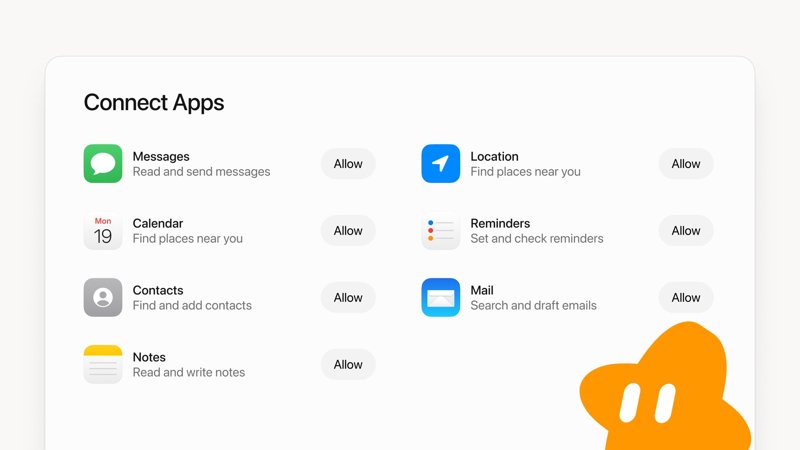
On November 12, 2026, Grok Bot for Mac gained access to seven Apple apps: Messages, Mail, Notes, Reminders, Calendar, Contacts and Location. You turn each one on separately in Connect Apps. Messages can read and send texts, Mail can search and draft emails, and Notes can read and write notes on your Mac.
Contents
- What changed on November 12
- What each Apple app lets a Bot do
- How to turn on the Mac apps
- Use your Mac’s apps from your phone or the web
- Mac versus iPhone and Android
- Permissions and safety controls
- Practical workflows
- Limitations and open questions
- Frequently asked questions
What changed on November 12
The official Grok Bot account announced on X that “Grok Bot on Mac can now use Messages, Mail, Notes, Reminders, Calendar, Location, and Contacts.” It followed the Grok Bot 1.0 release, which focused on shared Team Bots, Slack and Microsoft Teams, and meetings. Our Grok Bot 1.0 guide covers that release.
Before this update, xAI’s phone app listed Calendar, Contacts and Location, but not Messages, Mail or Notes. Now a Bot can combine these Apple apps in one request, The Mac Observer reported, such as turning part of a conversation into a reminder.
What each Apple app lets a Bot do
The Connect Apps screen shown in the announcement gives each app one line of description and its own Allow button:
| Apple app | Description on the Connect Apps screen | Can it act for you? |
|---|---|---|
| Messages | Read and send messages | Yes, it can send texts |
| Search and draft emails | Drafts only, as described | |
| Notes | Read and write notes | Yes, it can create and edit notes |
| Reminders | Set and check reminders | Yes, it can add reminders |
| Contacts | Find and add contacts | Yes, it can add contacts |
| Location | Find places near you | Read only |
| Calendar | The screen repeats the Location line, so its exact scope is not stated | Not specified for Mac |
Messages is the most sensitive permission because it is the only one described as sending something to another person.
How to turn on the Mac apps
These steps follow the setup described by The Mac Observer and the Connect Apps screen in the announcement:
- Update Grok Bot to the latest version on your Mac. Under Settings, then Updates, choose Check for Updates and Restart to Update if needed.
- Open the app and go to Connect Apps in the sidebar.
- Find the Apple apps listed for your Mac.
- Select Allow beside each app you want a Bot to use. Start with one low-risk app, such as Reminders.
- Approve the macOS permission request that follows. Read what each prompt grants before you accept.
- Test the connection with a simple request, such as “What reminders are due today?”
Each integration has its own control, so you can allow Reminders and Calendar without giving access to Messages or Mail.
Use your Mac’s apps from your phone or the web
The integrations run on your Mac, but you do not have to be sitting in front of it. Evan Bacon, who works on Grok Bot, wrote that you can “remote control your Mac from any Grok Bot client — mobile, web, Tesla — to check your calendar, send messages, and read reminders from anywhere.”
xAI has not yet documented whether the Mac must stay awake for this. For phones, its documentation says a Bot can reach a phone’s apps only while Grok Bot is open on that phone, so keep the Mac app running to be safe.
Mac versus iPhone and Android
xAI’s Grok Bot for Mobile documentation lists what a Bot can do with apps on a phone. The Mac list is different:
| App | Mac | iPhone | Android |
|---|---|---|---|
| Messages | Read and send | Not listed | Not listed |
| Search and draft | Not listed | Not listed | |
| Notes | Read and write | Not listed | Not listed |
| Reminders | Set and check | Read, add, change, check off, delete | Not listed |
| Calendar | Yes | Read, add, change, delete events | Same as iPhone |
| Contacts | Find and add | Read only | Read only |
| Location | Find places near you | Current position only | Current position only |
| Home, Alarms | Not listed | Home and alarms | Alarms |
On phones, xAI says app access works only in your own chat with a Bot you own. It does not work in group chats, in Slack or with a Team Bot someone else owns. The Mac announcement does not say whether the same rule applies, so assume it does until xAI documents otherwise.
Permissions and safety controls
Messages, Mail, Notes and Contacts hold some of the most personal data on a Mac. Grok Bot gives you three layers of control:
- Per-app Allow: each Apple app is turned on separately in Connect Apps.
- macOS permissions: approve or decline each system prompt that follows.
- Execution settings: the approvals and privacy documentation says access to the computer in front of you is separate from the Bot’s cloud computer. Under Settings, then Computer, you choose Ask every time, Always allow or Never allow. The default is Ask every time, and a team admin can set a stricter limit.
Before a Bot texts anyone, ask it to confirm the recipient and the exact wording.
Practical workflows
- Inbox triage: ask a Bot to search Mail for messages from a client this week and draft replies for you to review and send.
- Follow-ups from texts: have it read a Messages thread and turn agreed dates into reminders or calendar entries.
- Meeting prep: combine a calendar event, related emails and a note into a one-page brief saved back to Notes.
OpenAI added a similar Messages integration to ChatGPT on Mac earlier in 2026, The Mac Observer noted. Grok Bot’s version pairs it with Mail, Notes and Reminders in one Connect Apps screen. If you prefer Anthropic’s tools, see our Claude desktop guide and our Claude Meetings guide.
Limitations and open questions
- The announcement does not name a minimum macOS version. xAI’s setup guide says the desktop app runs on Macs with Apple silicon and Intel.
- xAI has not said whether the Apple app integrations need a particular plan. Grok Bot itself is included with Premium, Super and Ultra on The X Subscription.
- Messages, Mail and Notes are not listed for iPhone or Android.
- Mail is described as search and draft only, and the Calendar line on the Connect Apps screen does not describe its scope.
- As of November 13, 2026, the official Grok Bot changelog and help pages did not yet have a dedicated article for the Mac app integrations.
For how Grok handles what it remembers between chats, see Does Grok have memory?
Frequently asked questions
Can Grok Bot use iMessage on a Mac?
Yes. Since November 12, 2026, Grok Bot on Mac can use Apple’s Messages app. The Connect Apps screen describes the Messages permission as read and send messages, so a Bot can read your conversations and send texts for you once you allow it.
Can Grok Bot send emails from Apple Mail?
The Mail permission is described as search and draft emails. Neither the announcement nor the Connect Apps screen says the Bot can send from Apple Mail, so plan to review and send drafts yourself.
Do the Mac app integrations work on iPhone?
Messages, Mail and Notes are listed for the Mac. On iPhone, xAI’s documentation lists Calendar, Contacts, Location, Alarms, Reminders and Home, and Android supports Calendar, Contacts, Location and Alarms.
Which plan do I need for Grok Bot on Mac?
xAI says Grok Bot is included with Premium, Super and Ultra on The X Subscription, and on paid legacy Cursor plans. The Mac announcement does not name a separate plan or price for the Apple app integrations.
Can I use my Mac’s apps from my phone?
Evan Bacon, who works on Grok Bot, wrote that you can control your Mac from any Grok Bot client, including mobile, web and Tesla, to check your calendar, send messages and read reminders.
Sources
- Grok Bot (@bot) announcement on X, November 12, 2026
- Evan Bacon on remote control of Mac apps (X, November 12, 2026)
- Grok Bot for Mobile (SpaceXSI Docs)
- Approvals, security and privacy (SpaceXSI Docs)
- Grok Bot for Mac now connects to Apple Mail, Messages, Notes and more (The Mac Observer)