
Last updated: November 13, 2026
To screenshot on a Chromebook, press Ctrl + Show windows to capture the whole screen. For a partial or window screenshot, press Shift + Ctrl + Show windows to open the Screen capture toolbar, choose a mode, and select the area. Screenshots are saved to your Downloads folder and copied to the clipboard.
This guide explains how to screenshot on a Chromebook with the keyboard, the Screenshot key, Quick Settings, an external keyboard and tablet mode, plus where screenshots are saved and how to record your screen.
Contents
- Chromebook screenshot shortcuts at a glance
- How to take a screenshot on a Chromebook, step by step
- How to screenshot on a Chromebook without the Show windows key
- How to screenshot on a Chromebook in tablet mode
- Where do screenshots go on a Chromebook?
- How to record your screen on a Chromebook
- Chromebook screenshot not working?
- Frequently asked questions
Chromebook screenshot shortcuts at a glance
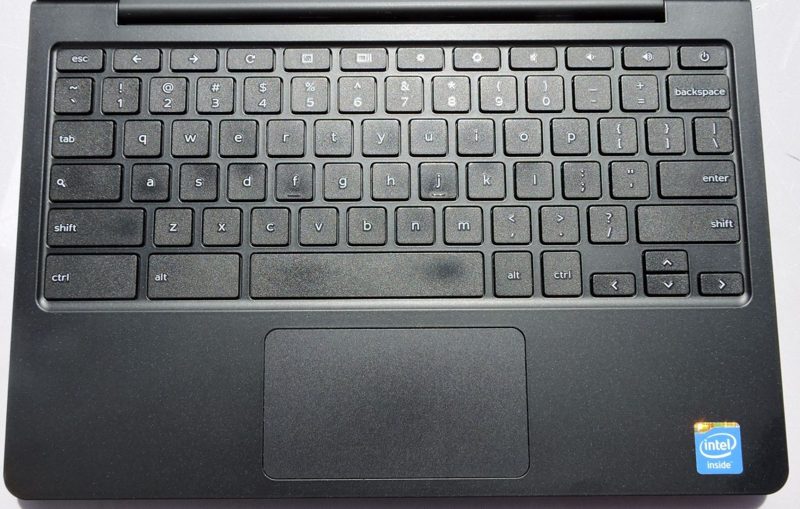
The Show windows key sits in the top row of a Chromebook keyboard. HP describes it as a rectangle with two vertical lines on its right side (HP). These shortcuts come from Google’s Chromebook Help (Google):
| What you want to capture | Shortcut or action |
|---|---|
| Full screen | Ctrl + Show windows |
| Part of the screen | Shift + Ctrl + Show windows, then select and drag |
| One window | Shift + Ctrl + Show windows, then choose Window screenshot |
| Any type, on models with a Screenshot key | Press the Screenshot key |
| External keyboard with no Show windows key | Ctrl + Shift + F5 |
| Tablet or no keyboard | Power button + Volume down button |
| Screen recording | Shift + Ctrl + Show windows, then choose Screen record |
These shortcuts are part of ChromeOS, so they apply to Chromebooks from HP, Lenovo, Acer, ASUS, Dell and other makers.
How to take a screenshot on a Chromebook, step by step
The Screen capture toolbar gives you every screenshot option in one place. Google’s instructions are (Google):
- Open Screen capture. Press the Screenshot key if your Chromebook has one. Otherwise press Shift + Ctrl + Show windows, or select the time at the bottom right of the screen and then select Screen capture.
- Choose Screenshot. In the toolbar at the bottom of the screen, make sure the Screenshot option is selected rather than Screen record.
- Pick a mode. Choose Full screen, Partial or Window.
- Capture. For a full screen screenshot, click anywhere. For a partial screenshot, drag to select an area. For a window screenshot, click the window you want.
- Review it. A preview appears at the bottom right of the screen, where you can open, share or delete the image.
How to take a partial screenshot on a Chromebook
A partial screenshot captures only the area you select. Press Shift + Ctrl + Show windows, choose Partial, then click and drag across the area. Google notes that you can also adjust the selection with the keyboard: press Tab until a corner is highlighted, then use the arrow keys to change the height and width (Google).
How to screenshot one window
To capture a single app or browser window without the shelf and desktop, open Screen capture, choose Window, and click the window.
How to screenshot on a Chromebook without the Show windows key
If you use a Windows or Mac keyboard with your Chromebook, press Ctrl + Shift + F5 to open the screenshot tools (Google). HP adds that F5 replaces the Show windows key in the other shortcuts too, so Ctrl + F5 takes a full screen screenshot (HP).
If no shortcut works, use the on-screen menu instead: select the time at the bottom right of the screen, then select Screen capture.
How to screenshot on a Chromebook in tablet mode
On a Chromebook tablet or a 2-in-1 folded into tablet mode, press the Power button and the Volume down button at the same time. For partial or window screenshots, press and hold the Power button and select Screen capture, or select the time and then Screen capture (Google).
Where do screenshots go on a Chromebook?
Screenshots and screen recordings are saved to the Downloads folder by default, and each one is also copied to your clipboard so you can paste it right away with Ctrl + V (Google). To find older screenshots, open the Files app and select Downloads.
How to change where screenshots are saved
- Press Shift + Ctrl + Show windows.
- At the bottom, select Settings, then Select folder.
- Choose a folder; future screenshots and recordings save there (Google).
How to paste a recent screenshot
Press Search + V (or Launcher + V) to open the clipboard menu, which keeps your recent copied items, including screenshots. Google says you can keep up to 5 items there (Google).
How to edit a Chromebook screenshot
Select the preview that appears after you take a screenshot to open it in the Gallery app. HP notes that Gallery can crop, rotate and rescale the image, adjust lighting and add annotations (HP).
How to record your screen on a Chromebook
The same toolbar records video. Press Shift + Ctrl + Show windows, select Screen record, and choose full screen, partial or window (Google).
- Audio and camera: In the toolbar settings, you can turn on the front camera and record device audio, the microphone or both.
- Video or GIF: A partial-screen recording can be saved as a .webm video or as a .gif. GIFs do not capture audio.
- Stop recording: Select Stop recording at the bottom right, or press Search + Shift + X.
Chromebook screenshot not working?
- Check the key. On a built-in Chromebook keyboard, the shortcut uses the Show windows key in the top row. On an external keyboard, use F5 in its place.
- Use the menu. Select the time, then Screen capture, to rule out a keyboard problem.
- Check your shortcuts. Press Ctrl + Search + S to see every keyboard shortcut on your Chromebook (Google).
Using another computer? See how to take a screenshot on Windows and how to screenshot on a Mac. Setting up a new phone as well? See how to transfer data to a new iPhone. If Chrome pages load slowly or show old content, our guide on how to clear your browser cache can help.
Frequently asked questions
How do you screenshot on a Chromebook?
Press Ctrl + Show windows to capture the full screen, or Shift + Ctrl + Show windows to open the Screen capture toolbar for a partial or window screenshot. If your Chromebook has a Screenshot key, you can press that instead.
How do I screenshot on a Chromebook without the Show windows key?
On an external keyboard without a Show windows key, press Ctrl + Shift + F5 to open the screenshot tools. You can also select the time at the bottom right of the screen and then select Screen capture.
Where do screenshots go on a Chromebook?
Screenshots and screen recordings are saved to the Downloads folder by default, and they are also copied to your clipboard. You can choose a different folder in the Screen capture settings.
How do you take a partial screenshot on a Chromebook?
Press Shift + Ctrl + Show windows, choose Partial screenshot, then click and drag to select the area you want. Release to capture it.
How do you screenshot on a Chromebook in tablet mode?
Press the Power button and the Volume down button at the same time. For more options, press and hold the Power button and select Screen capture.
Why is my Chromebook screenshot not working?
Check that you are pressing Ctrl with the Show windows key, not a function key, and use Ctrl + Shift + F5 on an external keyboard. If that fails, open Screen capture from the time menu at the bottom right.
Sources
- Google Chromebook Help: Take a screenshot or record your screen
- Google Chromebook Help: Chromebook keyboard shortcuts
- Google Chromebooks: Questions about Chromebooks
- HP Tech Takes: How to Take a Screenshot on a Chromebook
Featured image: Dell Chromebook 11 keyboard. Photo by Jimmy Burns, CC BY 2.0, via Wikimedia Commons; resized.
