
Last updated: October 26, 2026
Here is how to screenshot on Windows: press Windows key + PrtScn to save the full screen to Pictures > Screenshots, or press Windows key + Shift + S to select part of the screen and copy it to the clipboard. Both shortcuts work in Windows 11 and Windows 10.
This guide covers every built-in method, what each shortcut captures, and where the image ends up. All shortcuts come from Microsoft’s official support pages.
Contents
- How to screenshot on Windows: shortcuts at a glance
- How to screenshot with the Print Screen key
- How to screenshot part of the screen
- How to use Snipping Tool
- How to screenshot on a laptop without PrtSc
- Where do screenshots go on Windows?
- How to screenshot a game
- Frequently asked questions
How to screenshot on Windows: shortcuts at a glance
The table below summarizes the built-in screenshot shortcuts listed in Microsoft’s keyboard shortcuts in Windows guide and related support pages.
| Shortcut | What it captures | Where it goes |
|---|---|---|
| PrtScn | Windows 11: a region you select. Windows 10: the whole screen | Clipboard |
| Windows key + PrtScn | The full screen | Saved file in Pictures > Screenshots |
| Windows key + Shift + S | A rectangle, window, freeform shape or full screen | Clipboard, with a notification to open Snipping Tool |
| Alt + PrtScn | The active window only | Clipboard |
| Windows key + Shift + R | A video clip of a selected area | Snipping Tool |
| Windows key + Alt + PrtScn | The game or app you are using (Xbox Game Bar) | PNG file in Videos > Captures |
| Fn + Windows key + Space Bar | A screenshot on devices with no PrtScn key | Depends on the device |
How to screenshot with the Print Screen key
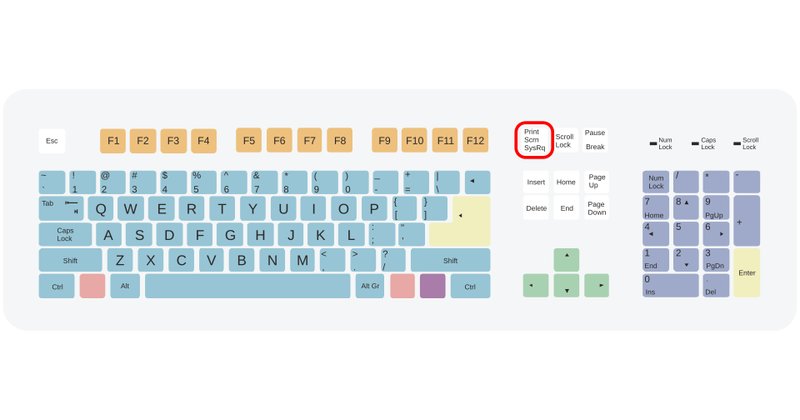
The Print Screen key is usually in the upper right corner of the keyboard. According to Microsoft Support, it may be labeled PrtSc, PrtScn or PrntScrn, and its second label is usually SysRq. For a refresher on the other keys in that area, see what cursor control keys on a keyboard do.
Save a full-screen screenshot as a file
Press Windows key + PrtScn. Windows captures the full screen and saves it to the Screenshots subfolder of your Pictures folder. This is the fastest method when you want a file rather than something to paste.
Copy the screen to the clipboard
What PrtScn does on its own depends on your version of Windows:
- Windows 11: PrtScn lets you select a region of the screen and copies it to the clipboard. You can turn this off under Start > Settings > Accessibility > Keyboard by setting Use the Print Screen button to open screen snipping to Off.
- Windows 10: PrtScn copies an image of your whole screen to the clipboard. You can make it open screen snipping instead under Start > Settings > Ease of Access > Keyboard.
After copying, paste the image with Ctrl + V into a document, an email or an image editor such as Paint.
Capture only the active window
Click the window you want, then press Alt + PrtScn. Windows copies only that window to the clipboard, which keeps other open apps and your taskbar out of the picture.
How to screenshot part of the screen
To capture just one area, follow these steps from Microsoft’s screen capture instructions:
- Set up your screen so what you want to capture is visible.
- Press Windows key + Shift + S. The desktop darkens.
- Choose a mode from the toolbar: rectangle, freeform, window or full screen.
- For rectangle or freeform mode, click and drag around the area. Window and full-screen captures happen immediately.
- The screenshot is copied to the clipboard. Select the notification to open it in the Snipping Tool editor, then save or copy it.
How to use Snipping Tool
Snipping Tool is the built-in screenshot app in Windows 11 and Windows 10. Open it by selecting Start, typing snipping tool and choosing the app (Microsoft: Use Snipping Tool). Pin it to the taskbar if you use it often.
Snip modes
- Rectangle: drag to select a rectangular area.
- Window: capture a single window, such as a dialog box.
- Full screen: capture the entire screen.
- Freeform: draw any shape around what you want.
- Video: record a clip of a selected area with Windows key + Shift + R.
Features many guides skip
Snipping Tool can do more than capture an image. Microsoft lists several useful extras:
- Delay: set a 1 to 5 second delay (Alt + D) so you can open a menu before the capture starts.
- Text actions: extract and copy text from a screenshot, or quickly redact email addresses and phone numbers. Microsoft says text recognition runs locally on your device.
- Markup: draw with the pen or highlighter, add shapes, crop, or choose Edit with Paint for more changes.
- Keyboard shortcuts: Ctrl + C copies the snip and Ctrl + S saves it.
How to screenshot on a laptop without PrtSc
Many compact laptop keyboards share keys or leave out a dedicated Print Screen key. Microsoft’s print screen shortcut page says that if your device does not have a PrtScn button, you can use Fn + Windows logo key + Space Bar to take a screenshot.
Windows key + Shift + S also works on any keyboard because it does not use Print Screen at all. These shortcuts apply to Windows laptops in general, including premium models like the Surface Laptop Ultra. Other systems use different shortcuts; see which free operating systems are available if you are using something other than Windows.
Where do screenshots go on Windows?
Where a screenshot lands depends on the method you used:
- Windows key + PrtScn: open File Explorer, select Pictures, then Screenshots (Microsoft).
- Snipping Tool (Windows 11): snips are automatically saved to your Screenshots folder. You can change this in Snipping Tool under See more > Settings.
- PrtScn, Alt + PrtScn and Windows key + Shift + S: the image goes to the clipboard until you paste or save it.
- Xbox Game Bar: Videos > Captures.
If you work across several displays, a full-screen capture may include more than you expect; window or region modes are the safer choice. For multi-display setups, see what multi-stream transport on DisplayPort is.
How to screenshot a game
For games and full-screen apps, use the Xbox Game Bar built into Windows. Press Windows key + Alt + PrtScn, and the image is saved as a PNG file in the Captures folder under Videos (Microsoft: Xbox Game Bar). Press Windows key + G to open the Game Bar controls. If nothing happens, check that Game Bar is enabled in Settings.
Frequently asked questions
What is the shortcut key for screenshot in Windows?
Press Windows key + Shift + S to select part of the screen and copy it to the clipboard. Press Windows key + PrtScn to capture the full screen and save it as a file.
Where do screenshots go on Windows?
Screenshots taken with Windows key + PrtScn are saved in the Screenshots folder inside Pictures. Print Screen and Windows key + Shift + S copy to the clipboard, and Xbox Game Bar screenshots are saved in Videos > Captures.
How do I screenshot on Windows without the Print Screen button?
Press Windows key + Shift + S, or open Snipping Tool from the Start menu. Microsoft also says devices without a PrtScn key can use Fn + Windows logo key + Space Bar.
How do I screenshot only one window?
Click the window, then press Alt + PrtScn to copy just that active window to the clipboard. You can also press Windows key + Shift + S and choose Window mode.
Why does Print Screen open the Snipping Tool?
In Windows 11, the Print Screen key opens screen snipping by default. To turn this off, go to Settings > Accessibility > Keyboard and set Use the Print Screen button to open screen snipping to Off.
Sources
- Microsoft Support: Use Snipping Tool to capture screenshots
- Microsoft Support: Keyboard shortcuts in Windows
- Microsoft Support: Keyboard shortcut for print screen
- Microsoft Support: Copy the window or screen contents
- Microsoft Support: Use a screen reader to record your screen with Xbox Game Bar
Image: “KeyboardWithPrintScreenRinged.svg,” by Stannered, licensed under CC BY-SA 3.0, via Wikimedia Commons. Converted to JPEG, resized and padded.

1 thought on “How to Screenshot on Windows: Every Shortcut and Where Files Go”