
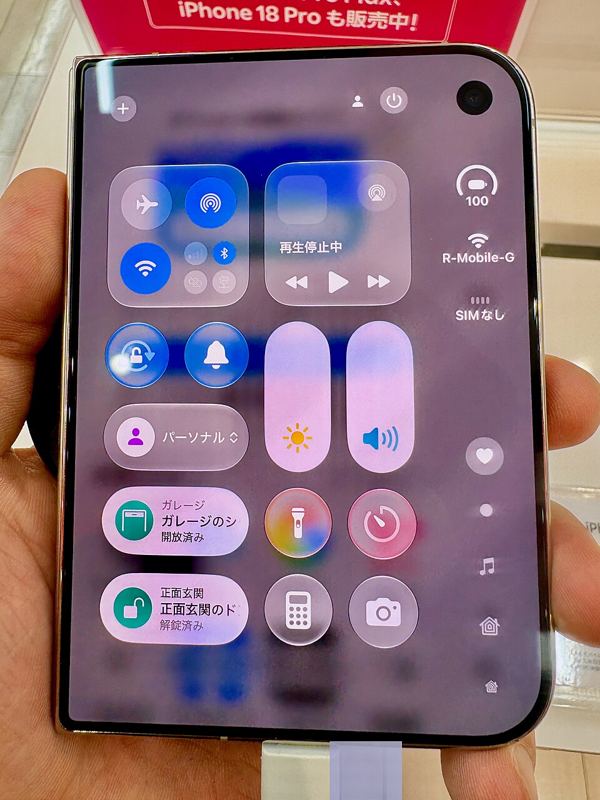
Last updated: November 18, 2026
Here is how to screen record on iPhone: swipe down from the top-right corner to open Control Center, tap the gray Screen Recording button, and wait for the three-second countdown. To stop, tap the red indicator at the top of the screen, then tap Stop. The video saves to the Photos app.
This guide covers adding the Screen Recording control, recording with sound from the microphone, stopping and finding recordings, trimming them, and what to check when screen recording is not working.
Contents
- How to add Screen Recording to Control Center
- How to screen record on iPhone step by step
- How to screen record on iPhone with sound
- How to stop a screen recording on iPhone
- Where do screen recordings go on iPhone?
- How to trim or edit a screen recording
- Why is screen recording not working on my iPhone?
- Frequently asked questions
How to add Screen Recording to Control Center
Screen recording is built into iOS, so you do not need an app. You start it from Control Center, but the Screen Recording control has to be in Control Center first (Apple iPhone User Guide). If you do not see a gray button with a filled circle inside a ring, add it once:
- Open Control Center. On an iPhone with Face ID, swipe down from the top-right corner. On iPhone SE, swipe up from the bottom edge.
- Tap the edit button (the plus sign) at the top left to start editing controls.
- Tap Add a Control at the bottom of the screen to open the controls gallery.
- Tap Screen Recording. It is added to your current group of controls.
- Close Control Center by swiping up from the bottom center of the screen, or press the Home button on iPhone SE.
Apple’s Control Center instructions also explain how to drag the control to a new position or resize it (Apple: Use and customize Control Center). The control stays in place for future recordings.
How to screen record on iPhone step by step
These steps work on current models, including the iPhone 17, iPhone 16 and iPhone 15 families, because the feature lives in Control Center rather than in a model-specific button (Apple Support).
- Open the screen you want to capture. Start in the app or page you plan to record so the video begins in the right place.
- Open Control Center. Swipe down from the top-right corner of the screen.
- Tap the gray Screen Recording button. A three-second countdown begins.
- Exit Control Center. Swipe up to dismiss it, then perform the actions you want to record.
- Stop the recording. Tap the red recording indicator at the top of the screen, then tap Stop.
Two limits apply: some apps might not allow you to record audio or video, and you cannot record your screen and use screen mirroring at the same time (Apple Support).
How to screen record on iPhone with sound
A standard recording captures the screen. To add your own voice, such as narration for a tutorial, turn on the microphone before you start (Apple iPhone User Guide):
- Open Control Center.
- Touch and hold the Screen Recording button instead of tapping it.
- Tap Microphone to turn it on.
- Tap Start Recording and wait for the three-second countdown.
- Exit Control Center and record as usual.
If a recording has no sound, the app you recorded may not allow audio capture. Apple notes this applies to some apps, so test a short clip before recording something long.
How to stop a screen recording on iPhone
The stop method depends on your model (Apple iPhone User Guide):
| iPhone type | How to stop recording |
|---|---|
| iPhone with Dynamic Island | Tap the red circle in the Dynamic Island, then tap the Stop button. |
| Other models | Tap the red timer at the top left of the screen, then tap Stop. |
| Any model | Open Control Center and tap the red Record button. |
Where do screen recordings go on iPhone?
Screen recordings save automatically to your photo library. To find them quickly, open the Photos app, tap Collections, scroll down to Media Types, then tap Screen Recordings (Apple iPhone User Guide). They also appear in your main Library with your other photos and videos.
Recordings take up storage like any other video. If you are moving to a new phone, our guide on how to transfer data to a new iPhone explains how your photo library, including recordings, comes along.
How to trim or edit a screen recording
Most recordings start with Control Center on screen and end with you tapping Stop. You can cut those parts off in Photos (Apple: How to edit videos):
- Open the Photos app and tap the screen recording.
- Tap Edit.
- Move the sliders on both sides of the timeline to change the start and stop times. Tap Play to preview.
- Tap Done, then tap Save Video or Save Video as New Clip.
Save Video keeps only the trimmed version, while Save Video as New Clip keeps the original and adds a trimmed copy. To undo a trim, open the video, tap Edit, tap Revert, then tap Revert to Original (Apple).
Why is screen recording not working on my iPhone?
The Screen Recording button is missing
The control is not in Control Center yet. Add it with the steps in the first section of this guide.
The recording is black or silent
Some apps might not allow you to record their audio or video (Apple Support). This is set by the app, not by your phone.
Screen recording will not start
Turn off screen mirroring first, because you cannot record and mirror at the same time (Apple Support). On a child’s or family-managed iPhone, also check Screen Time: Content & Privacy Restrictions let a parent restrict apps, features and settings on the device (Apple: Use parental controls).
Need a still image instead of a video? See how to take screenshots on a Mac with every keyboard shortcut, on Windows or on a Chromebook. If an app keeps misbehaving while you record, our guide on how to clear cache on iPhone, Android and browsers may help.
Frequently asked questions
How do I turn on screen recording on my iPhone?
Open Control Center, tap the edit button at the top left, tap Add a Control, then tap Screen Recording. After that, tap the gray Record button in Control Center whenever you want to record.
How do I screen record with sound on iPhone?
Open Control Center, touch and hold the Screen Recording button, tap Microphone to turn it on, then tap Start Recording. Some apps might not allow audio to be recorded.
Where do screen recordings go on iPhone?
Screen recordings save automatically to the Photos app. To see only recordings, open Photos, tap Collections, scroll to Media Types and tap Screen Recordings.
How do I stop screen recording on iPhone?
On an iPhone with Dynamic Island, tap the red circle and then the Stop button. On other models, tap the red timer at the top left and tap Stop, or open Control Center and tap the red Record button.
Why can’t I screen record on my iPhone?
Screen recording does not work while screen mirroring is on, and some apps block recording of their content. If the control is missing, add it to Control Center; if it is unavailable, check whether Screen Time Content & Privacy Restrictions are turned on.
Sources
- Apple Support: Record the screen on your iPhone, iPad, or iPod touch
- Apple iPhone User Guide: Take a screen recording on iPhone
- Apple iPhone User Guide: Use and customize Control Center on iPhone
- Apple Support: How to edit videos on your iPhone, iPad, Mac, or Apple Vision Pro
- Apple Support: Use parental controls on your child’s iPhone or iPad
Featured image: “iPhone Duo Control center (closed)” by Kyu3a, CC BY-SA 4.0, via Wikimedia Commons; resized.
