
Last updated: November 17, 2026
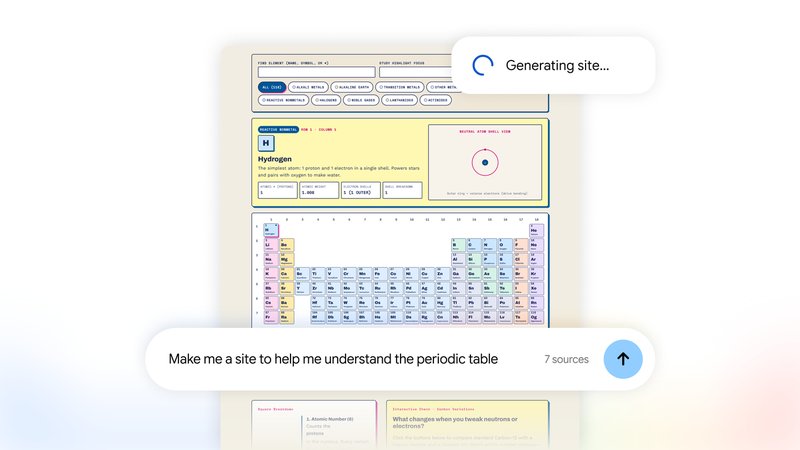
Gemini Notebook can now turn the sources in a notebook into interactive sites. Since November 16, 2026, you type “make me a site” in the notebook chat with a description, and it builds a dashboard, tracker or visual explainer you can open in a new tab, share or download. It is on the web for users 18 and older.
Contents
- What changed on November 16
- How to make a site
- Using, sharing and deleting sites
- Sites compared with other Studio outputs
- Plans and usage limits
- Practical workflows
- Limitations
- Frequently asked questions
What changed on November 16
Google announced interactive sites on November 16, 2026. The Google Labs post says Gemini Notebook can now turn your sources into interactive sites to help you make sense of complex information. Its examples include an interactive periodic table, a quarterly sales dashboard and a project tracker.
Gemini Notebook is the product formerly called NotebookLM. Google renamed it on July 16, 2026 and said it remains the same standalone research tool, with notebooks that sync with the Gemini app.
| Item | Detail (per Google) |
|---|---|
| Release date | November 16, 2026 |
| Where | Web, rolling out globally; mobile app “coming soon” |
| Who | Gemini Notebook users 18 and older, including Google Workspace subscribers |
| How to start | Ask in the Chat panel to make a site, with a description |
| Where sites live | The Studio panel of the notebook |
| Actions | Open in new tab, share a link, download, delete |
| Limits | Counts against Gemini Notebook usage limits |
How to make a site
The Gemini Notebook Help page on generating sites lists these steps. You need edit access to the notebook to generate or delete a site.
- Go to notebook.google.com in a browser.
- Open a notebook you can edit, or create a new one and upload your sources.
- In the Chat panel, ask it to make a site and describe what you want, for example: “Make me a site that tracks each task in these project notes, with owners and deadlines.”
- Wait while it generates. Google says this may take some time, and you can keep working in the notebook meanwhile.
- When it is done, select the site in the Studio panel. To view it full screen, select More > Open in new tab.
Be specific: name the sources to use, the fields to show and the controls you need, such as filters or checkboxes.
Using, sharing and deleting sites
The help page says a site saves and reopens with the selections and inputs you made before, such as checked boxes, logged notes or text you entered, so a tracker or checklist is practical to return to.
Sharing works through the notebook:
- Share a link. In the Studio panel, select More > Share, make sure the notebook is shared with the recipient or with anyone with the link, then select Copy link to artifact and Save. Viewers need access to the full notebook.
- Who can share. To share sites publicly and manage access, you must have a consumer Google account and be a notebook owner or editor.
- Private inputs. On shared sites, every user, including the owner, sees only their own inputs.
- Download. Select More > Download to save the site as a file you can pass on.
- Delete. Select More > Delete. Deleting a site or turning off sharing breaks any share links you sent earlier.
For notebook sharing basics and source caps, see our answer on the NotebookLM source limit.
Sites compared with other Studio outputs
Before this release, the Studio panel already produced reports, flashcards, infographics, slide decks, Audio Overviews and Video Overviews, which Google lists on its plans page. Sites add an output you can click through and fill in. The table compares what Google documents for sites with the rest of Studio.
| Question | Interactive sites | Other Studio outputs |
|---|---|---|
| How you request it | Ask in Chat to make a site, with a description | Generated from the Studio panel; some may be created automatically when sources are first added |
| Saves your inputs | Yes, per user | Not described for these formats |
| Counts toward limits | Yes | Yes, except outputs generated automatically when sources are first added |
Interactive output is a trend across AI tools. Our guides to Claude interactive connectors and Cursor Live Apps cover similar ideas in other products, and our Gemini slides answer covers presentation output in the Gemini app.
Plans and usage limits
Google says usage limits apply to creating sites. Gemini Notebook limits are compute-based: they factor in the complexity of your prompt, the models and features you use and the length of your chat. Quota refreshes every 5 hours until you reach a weekly limit.
| Plan | Usage limit | Notebooks | Sources per notebook (excluding notes) |
|---|---|---|---|
| No plan | Standard | 100 | 50 |
| Google AI Plus | 2x standard | 200 | 100 |
| Google AI Pro | 4x standard | 500 | 300 |
| Google AI Ultra | 5x or 20x AI Pro, depending on subscription | 500 | 500 (20 TB plan) or 600 (30 TB plan) |
Usage figures come from the usage limits page and notebook and source counts from the plans page. Google notes that limits may change. To check where you stand, open Settings > Usage at the top right of Gemini Notebook. Studio also shows a bar estimating how much a generation will cost before you start.
If you run out, the web app offers Generate later, which queues the generation and may take a couple of hours. Our NotebookLM cost answer covers plan options.
Practical workflows
- Study explainer. Add lecture notes, then ask for a site with a glossary, a timeline and a self-check section.
- Data dashboard. Upload a sales export and ask for filters by region and quarter, then check the figures against the source.
- Project tracker. Turn meeting notes into a tracker of tasks, owners and deadlines, and share it through the notebook.
For a wider look at recent Gemini app changes, see our Gemini app new features guide.
Limitations
- Web only for now. The mobile app does not have sites yet, and Google has not given a date.
- Adults only. The feature is limited to users 18 and older.
- Edit access required. Viewers cannot generate or delete sites.
- Public sharing needs a consumer account. The help page ties public sharing and access management to consumer accounts, so Workspace users should check their organization’s sharing settings.
- Links break on deletion. Deleting a site or turning off sharing invalidates earlier links.
- Accuracy. Sites are AI-generated, so verify numbers and dates.
Frequently asked questions
What are interactive sites in Gemini Notebook?
They are a new Studio output, launched November 16, 2026, that turns the sources in a notebook into an interactive web page, such as a visual explainer, a data dashboard or a project tracker, which you can open in a new tab, share or download.
How do I make a site in Gemini Notebook?
Open a notebook you can edit at notebook.google.com, then in the Chat panel ask it to make a site and describe what you want, for example an interactive dashboard of quarterly sales. The finished site appears in the Studio panel.
Is the sites feature free?
Google’s help page does not limit sites to paid plans, but usage limits apply. Gemini Notebook uses compute-based limits that refresh every 5 hours up to a weekly cap, and paid Google AI plans raise those limits.
Can other people see what I type into a shared site?
No. Google’s help page says that on shared sites every user, including the owner, sees only their own inputs. Your selections and notes are saved for you and reopen the next time you visit.
Is Gemini Notebook the same as NotebookLM?
Yes. Google renamed NotebookLM to Gemini Notebook on July 16, 2026. It is the same standalone product, and notebooks also sync with the Gemini app.
Sources
- Google blog: Turn Gemini Notebook sources into interactive sites (November 16, 2026)
- Gemini Notebook Help: Generate sites in Gemini Notebook
- Gemini Notebook Help: Manage your Gemini Notebook usage limits
- Gemini Notebook Help: Learn about Gemini Notebook’s plans
- Google blog: NotebookLM is now Gemini Notebook (July 16, 2026)
Image: Gemini Notebook interactive sites announcement image by Google, from the Google blog, used for editorial purposes.